Zoom to Selection
in 3.7 pre-rel
Select an area with
Ctrl + drag (or select text), then use Zoom / To Selection (Ctrl + 4, also in the right-click menu). The view zooms so the selection fills the window and is centered. The selection stays, so you can still copy it, and Alt + Left takes you back to the previous view and zoom. The command is CmdZoomToSelection (#1699).Customizable toolbar
New
ToolbarCustomLayout advanced setting: list the built-in toolbar buttons you want, in the order you want them, e.g. ToolbarCustomLayout = CmdFindFirst | PageInfo CmdGoToPrevPage CmdGoToNextPage. Buttons you leave out are hidden, | adds a separator and PageInfo is the page number box. Leave it empty for the standard layout (#5095).
Zoom beyond 6400%
You can now zoom past 6400%, which helps with large maps that have fine detail. The largest value in the
ZoomLevels advanced setting sets the maximum zoom, so adding e.g. 12800 25600 51200 lets you zoom that far. Values up to 1000000 are accepted (#1195).Laser pointer
Toggle Laser Pointer (
CmdToggleLaserPointer) turns the mouse cursor over the document into a glowing red dot for presentations. While it’s on, the cursor doesn’t auto-hide in presentation mode. There’s no default shortcut: assign one in the Shortcuts advanced setting (#5930).Better screen reader support
Screen readers such as Narrator and NVDA can now read PDF, XPS and DjVu documents character by character, word by word, line by line or page by page, where before they kept repeating the first line. They can also read the text under the mouse pointer or your finger (Narrator mouse mode, touch exploration) (#321).
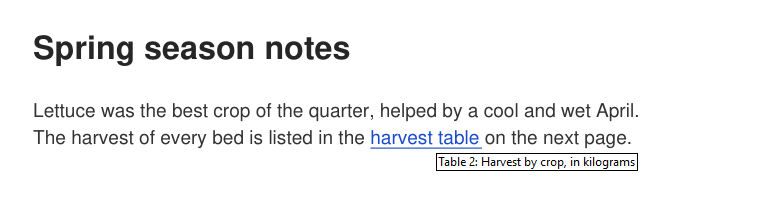
Link descriptions on hover
Hovering a link that points to another place in the document now shows the description the PDF gives it, just as hovering a web link shows its URL. Before, these links showed nothing (#1724).
Custom buttons on the selection toolbar
A
SelectionHandlers entry can add its own button to the toolbar that pops up over a text selection, using the SelectToolbarNameOrSvg field (button text, or an SVG icon). This lets you send selected text to a web service or program in one click (discussion #5931).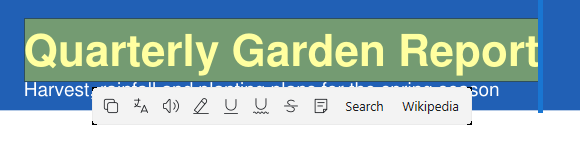
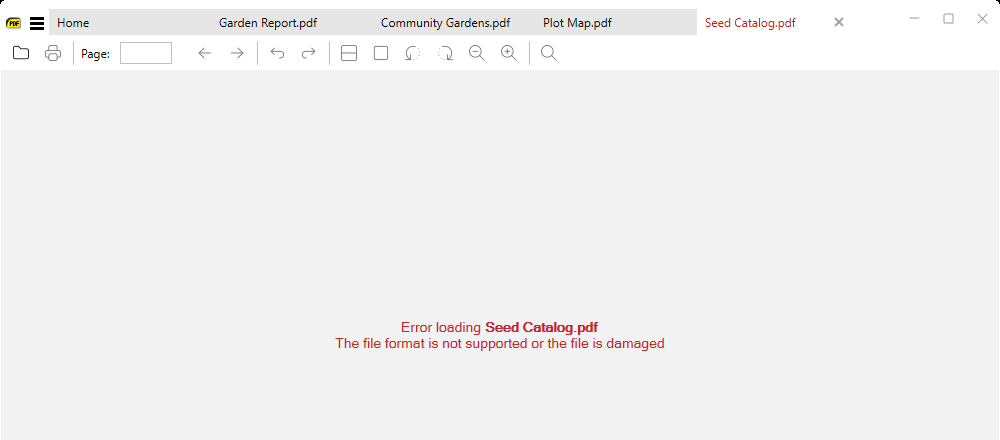
Files that fail to open get their own tab
When a file can’t be opened, it now gets a tab with the error screen instead of only a brief notification. You can then open it in another program or show it in its folder, and when several bad files are opened at once, each keeps its own error (#3595).