Change the colors of the SumatraPDF UI (menus, tabs, toolbars) by defining your own theme with the
Themes advanced setting, and optionally make document pages follow it.Available in version 3.6 or later.
Most people copy a built-in theme, rename it and change a few colors. At a glance:
- Pick a theme: Settings → Theme,
Ctrl + KthenSet theme '<name>', orTheme = <name>. - Create a theme: add an entry to the
Themesarray. - Customize a built-in theme: copy its definition (below), give it a new
Name. - Recolor document pages:
DocumentColorsFollowTheme = off / smart / legacy. - Invert page colors for this session:
Shift + I(CmdInvertColors).
Create a theme #
- Open the settings file:
- Menu: Settings → Open Advanced Settings File…
- Command Palette:
Ctrl + K, thenOpen Advanced Settings File...
SumatraPDF-settings.txtopens in your default text editor. Scroll to the bottom, find theThemesarray and add theme definitions.
Themes [
    [
        Name = My Dark Theme
        TextColor = #bac9d0
        BackgroundColor = #263238
        ControlBackgroundColor = #263238
        ActiveTabBackgroundColor = #263238
        InactiveTabBackgroundColor = #4d3a56
        LinkColor = #8aa3b0
        DisabledTextColor = #6b7c85
        DarkerTextColor = #8aa3b0
        HotBackgroundColor = #324047
        EdgeColor = #37474f
        HotEdgeColor = #546e7a
        DisabledEdgeColor = #1e272c
        ErrorBackgroundColor = #5c2b2b
        NotificationBackgroundColor = #2e3c43
        NotificationHighlightColor = #455a64
        NotificationHighlightTextColor = #eceff1
        ColorizeControls = true
    ]
]
The entry above creates a theme named
My Dark Theme. Built-in themes already have these colors filled in, and their definitions are listed below.Customize a built-in theme #
Copy its definition from Built-in themes (or
src/Theme.cpp) into your Themes setting, give it a new Name, and change the colors you want.For example, copy
Dracula, rename it My Dracula, and set ActiveTabBackgroundColor and InactiveTabBackgroundColor to your preferred tab colors. Select My Dracula in Settings → Theme after saving.Choose a theme #
After you save the settings file:
- Menu: Settings → Theme, then choose a theme
- Command Palette:
Ctrl + K, thenSet theme '<name>' - Settings file: change
Theme =inSumatraPDF-settings.txt(e.g.Theme = Solarized Dark)
Make document pages follow the theme #
UI themes only recolor chrome (menus, tabs, toolbars). Separately, document pages (PDF, XPS, DjVu, EPUB, MOBI, FB2, comics, images, and other MuPDF-rendered formats) can follow the theme via
DocumentColorsFollowTheme:| Value | Effect |
|---|---|
off (default) |
Keep the document’s own page colors. |
smart |
Recolor text and page background using FixedPageUI.TextColor / FixedPageUI.BackgroundColor when set, otherwise the current theme’s text/background. Photos and other images stay as in the file, which is preferred for dark reading. Reflowable MuPDF formats (EPUB, HTML, FB2, MOBI) recolor with CSS rather than by recoloring the page bitmap. |
legacy |
Also recolor images on PDF, XPS, and DjVu (older invert / colorize behavior). Reflowable MuPDF formats still use CSS, so images stay original. |
To change it:
- Menu: Settings → Theme… or Settings → Make Document Colors Follow Theme
- Command Palette:
Ctrl + K, thenSet Document Colors Follow Theme(CmdSetDocumentColorsFollowTheme) for a drop-down includinglegacy - Advanced settings:
DocumentColorsFollowTheme = off/smart/legacy
The setting is independent of
Theme = .... You can use a dark UI theme with DocumentColorsFollowTheme = off (original white PDF pages), or a light UI with smart page recoloring.The
Dark theme with DocumentColorsFollowTheme = off (left) and smart (right):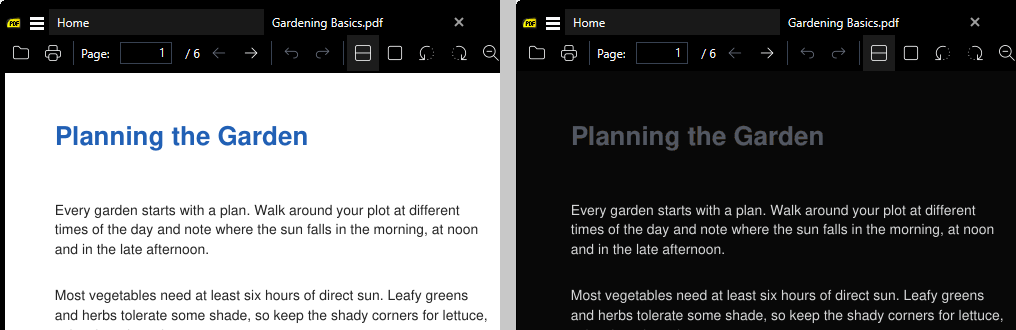
Invert page colors temporarily #
Press
Shift + I (CmdInvertColors). It swaps the page colors for the rest of the session, whatever DocumentColorsFollowTheme and FixedPageUI are set to, and is not saved to the settings file.Tips #
- Start from a built-in theme close to what you want instead of writing all colors.
- Keep
ColorizeControls = true, because withfalsemuch of the UI ignores the theme. - Set the optional colors when a tinted
TextColormakes derived disabled / hover colors look wrong. - Use
DocumentColorsFollowTheme = smartfor dark reading that keeps photos intact. - Use
Shift + Ifor a one-off inversion that isn’t saved.
Theme color reference #
Required / base colors
TextColorandBackgroundColorset the main window’s text and background colors.ControlBackgroundColorsets the background of Windows controls (buttons, window frame, menus, list controls, etc.).ActiveTabBackgroundColorandInactiveTabBackgroundColorset the backgrounds of active and inactive tabs. If empty, they use the control background and its derived inactive shade.LinkColorsets the color of links. It is typically blue.ColorizeControlsshould betrue. If it isfalse, we won’t try to change the colors of standard Windows controls (menus, toolbars, buttons, etc.), so much of the UI will not respect the theme colors.
Optional UI colors (leave empty to derive from the base colors, and set them when a warm or tinted
TextColor would make derived disabled/hover colors look wrong, e.g. Dracula’s near-white foreground)DisabledTextColor: grayed / disabled labels and buttonsDarkerTextColor: secondary / muted textHotBackgroundColor: hovered control backgroundEdgeColor/HotEdgeColor/DisabledEdgeColor: control bordersErrorBackgroundColor: error surfacesNotificationBackgroundColor/NotificationHighlightColor/NotificationHighlightTextColor: in-app notification tipsActiveTabBackgroundColor/InactiveTabBackgroundColor: active and inactive tab backgrounds
Built-in Themes #
The built-in theme definitions are listed below. Copy one into your Themes setting and give it a new Name to create a customized theme.
Themes [
    [
        Name = Light
        TextColor = #000000
        BackgroundColor = #f2f2f2
        ControlBackgroundColor = #ffffff
        ActiveTabBackgroundColor = #ffffff
        InactiveTabBackgroundColor = #e6e6e6
        LinkColor = #0020a0
        DisabledTextColor = #808080
        DarkerTextColor = #404040
        HotBackgroundColor = #e8e8e8
        EdgeColor = #c0c0c0
        HotEdgeColor = #808080
        DisabledEdgeColor = #d0d0d0
        ErrorBackgroundColor = #ffe0e0
        NotificationBackgroundColor = #fafafa
        NotificationHighlightColor = #ffee70
        NotificationHighlightTextColor = #8d0801
        ColorizeControls = false
    ]
    [
        Name = Dark
        TextColor = #F9FAFB
        BackgroundColor = #000000
        ControlBackgroundColor = #000000
        ActiveTabBackgroundColor = #000000
        InactiveTabBackgroundColor = #191919
        LinkColor = #6B7280
        DisabledTextColor = #6B7280
        DarkerTextColor = #9CA3AF
        HotBackgroundColor = #1F2937
        EdgeColor = #374151
        HotEdgeColor = #6B7280
        DisabledEdgeColor = #1F2937
        ErrorBackgroundColor = #7F1D1D
        NotificationBackgroundColor = #111827
        NotificationHighlightColor = #422006
        NotificationHighlightTextColor = #fde68a
        ColorizeControls = true
    ]
    [
        Name = Light Warm
        TextColor = #333333
        BackgroundColor = #ebe6da
        ControlBackgroundColor = #f5f1e8
        ActiveTabBackgroundColor = #f5f1e8
        InactiveTabBackgroundColor = #e6dcc5
        LinkColor = #0020a0
        DisabledTextColor = #8a8578
        DarkerTextColor = #5c574c
        HotBackgroundColor = #e8e2d4
        EdgeColor = #c9c2b0
        HotEdgeColor = #8a8578
        DisabledEdgeColor = #ddd6c6
        ErrorBackgroundColor = #f5d6d0
        NotificationBackgroundColor = #f8f4ea
        NotificationHighlightColor = #e8d48b
        NotificationHighlightTextColor = #5c3a0a
        ColorizeControls = true
    ]
    [
        Name = Dark from 3.5
        TextColor = #bac9d0
        BackgroundColor = #263238
        ControlBackgroundColor = #263238
        ActiveTabBackgroundColor = #263238
        InactiveTabBackgroundColor = #4d3a56
        LinkColor = #8aa3b0
        DisabledTextColor = #6b7c85
        DarkerTextColor = #8aa3b0
        HotBackgroundColor = #324047
        EdgeColor = #37474f
        HotEdgeColor = #546e7a
        DisabledEdgeColor = #1e272c
        ErrorBackgroundColor = #5c2b2b
        NotificationBackgroundColor = #2e3c43
        NotificationHighlightColor = #4a3a12
        NotificationHighlightTextColor = #ffdf9e
        ColorizeControls = true
    ]
    [
        Name = Charcoal
        TextColor = #ffffff
        BackgroundColor = #2d2d30
        ControlBackgroundColor = #2d2d30
        ActiveTabBackgroundColor = #2d2d30
        InactiveTabBackgroundColor = #45454a
        LinkColor = #9999a0
        DisabledTextColor = #808088
        DarkerTextColor = #b0b0b8
        HotBackgroundColor = #3e3e42
        EdgeColor = #505058
        HotEdgeColor = #808088
        DisabledEdgeColor = #252528
        ErrorBackgroundColor = #5a1d1d
        NotificationBackgroundColor = #38383c
        NotificationHighlightColor = #4a3c16
        NotificationHighlightTextColor = #ffe2a0
        ColorizeControls = true
    ]
    [
        Name = Solarized Light
        TextColor = #212323
        BackgroundColor = #fdf6e3
        ControlBackgroundColor = #eee8d5
        ActiveTabBackgroundColor = #eee8d5
        InactiveTabBackgroundColor = #e0d5b1
        LinkColor = #268bd2
        DisabledTextColor = #93a1a1
        DarkerTextColor = #586e75
        HotBackgroundColor = #e6dfc8
        EdgeColor = #93a1a1
        HotEdgeColor = #657b83
        DisabledEdgeColor = #eee8d5
        ErrorBackgroundColor = #f8d0c8
        NotificationBackgroundColor = #f5efdc
        NotificationHighlightColor = #f3e2b3
        NotificationHighlightTextColor = #5c4405
        ColorizeControls = true
    ]
    [
        Name = Solarized Dark
        TextColor = #839496
        BackgroundColor = #002b36
        ControlBackgroundColor = #073642
        ActiveTabBackgroundColor = #073642
        InactiveTabBackgroundColor = #5b0c6f
        LinkColor = #268bd2
        DisabledTextColor = #586e75
        DarkerTextColor = #657b83
        HotBackgroundColor = #0a4a58
        EdgeColor = #586e75
        HotEdgeColor = #839496
        DisabledEdgeColor = #002b36
        ErrorBackgroundColor = #5c1a1a
        NotificationBackgroundColor = #003543
        NotificationHighlightColor = #3d3208
        NotificationHighlightTextColor = #eec97a
        ColorizeControls = true
    ]
    [
        Name = Dracula
        TextColor = #f8f8f2
        BackgroundColor = #282a36
        ControlBackgroundColor = #44475a
        ActiveTabBackgroundColor = #44475a
        InactiveTabBackgroundColor = #5d5a76
        LinkColor = #8be9fd
        DisabledTextColor = #6272a4
        DarkerTextColor = #6272a4
        HotBackgroundColor = #565a73
        EdgeColor = #6272a4
        HotEdgeColor = #bd93f9
        DisabledEdgeColor = #343746
        ErrorBackgroundColor = #ff5555
        NotificationBackgroundColor = #343746
        NotificationHighlightColor = #4a3c14
        NotificationHighlightTextColor = #f1fa8c
        ColorizeControls = true
    ]
    [
        Name = Nebula
        TextColor = #CBE3E7
        BackgroundColor = #100E23
        ControlBackgroundColor = #1E1C31
        ActiveTabBackgroundColor = #1E1C31
        InactiveTabBackgroundColor = #312e51
        LinkColor = #91DDFF
        DisabledTextColor = #6b6b8a
        DarkerTextColor = #a0a0c0
        HotBackgroundColor = #2a2745
        EdgeColor = #3e3a5c
        HotEdgeColor = #91DDFF
        DisabledEdgeColor = #15132a
        ErrorBackgroundColor = #5c1a2e
        NotificationBackgroundColor = #1a1830
        NotificationHighlightColor = #3d2f12
        NotificationHighlightTextColor = #f0d9a0
        ColorizeControls = true
    ]
    [
        Name = Greeny
        TextColor = #FDD085
        BackgroundColor = #4F6232
        ControlBackgroundColor = #1E3304
        ActiveTabBackgroundColor = #1E3304
        InactiveTabBackgroundColor = #086139
        LinkColor = #A2E53B
        DisabledTextColor = #8a9a60
        DarkerTextColor = #c0c878
        HotBackgroundColor = #2a4210
        EdgeColor = #6a7a40
        HotEdgeColor = #A2E53B
        DisabledEdgeColor = #152808
        ErrorBackgroundColor = #5c2810
        NotificationBackgroundColor = #3a4a28
        NotificationHighlightColor = #5c4a18
        NotificationHighlightTextColor = #fde7b0
        ColorizeControls = true
    ]
    [
        Name = Choco
        TextColor = #D7AD62
        BackgroundColor = #2A1104
        ControlBackgroundColor = #172736
        ActiveTabBackgroundColor = #172736
        InactiveTabBackgroundColor = #402659
        LinkColor = #E8CD12
        DisabledTextColor = #8a7040
        DarkerTextColor = #b09050
        HotBackgroundColor = #243848
        EdgeColor = #3a4a58
        HotEdgeColor = #E8CD12
        DisabledEdgeColor = #0e1820
        ErrorBackgroundColor = #5c2010
        NotificationBackgroundColor = #1e2e3c
        NotificationHighlightColor = #4a3208
        NotificationHighlightTextColor = #f5d89b
        ColorizeControls = true
    ]
    [
        Name = Purpy
        TextColor = #E2C3C3
        BackgroundColor = #20222A
        ControlBackgroundColor = #1E0126
        ActiveTabBackgroundColor = #1E0126
        InactiveTabBackgroundColor = #440257
        LinkColor = #EFF0B8
        DisabledTextColor = #8a7088
        DarkerTextColor = #b0a0b0
        HotBackgroundColor = #2e1838
        EdgeColor = #4a3060
        HotEdgeColor = #EFF0B8
        DisabledEdgeColor = #140018
        ErrorBackgroundColor = #5c1a2a
        NotificationBackgroundColor = #28203a
        NotificationHighlightColor = #46360f
        NotificationHighlightTextColor = #f0d9a8
        ColorizeControls = true
    ]
    [
        Name = One Dark
        TextColor = #abb2bf
        BackgroundColor = #282c34
        ControlBackgroundColor = #21252b
        ActiveTabBackgroundColor = #21252b
        InactiveTabBackgroundColor = #3d3747
        LinkColor = #61afef
        DisabledTextColor = #5c6370
        DarkerTextColor = #7f848e
        HotBackgroundColor = #2c313c
        EdgeColor = #181a1f
        HotEdgeColor = #528bff
        DisabledEdgeColor = #1b1d23
        ErrorBackgroundColor = #be5046
        NotificationBackgroundColor = #2c313a
        NotificationHighlightColor = #40351a
        NotificationHighlightTextColor = #e5c07b
        ColorizeControls = true
    ]
    [
        Name = Monokai
        TextColor = #f8f8f2
        BackgroundColor = #272822
        ControlBackgroundColor = #3e3d32
        ActiveTabBackgroundColor = #3e3d32
        InactiveTabBackgroundColor = #5a5848
        LinkColor = #66d9ef
        DisabledTextColor = #75715e
        DarkerTextColor = #a6a68a
        HotBackgroundColor = #49483e
        EdgeColor = #75715e
        HotEdgeColor = #a6e22e
        DisabledEdgeColor = #1e1f1c
        ErrorBackgroundColor = #f92672
        NotificationBackgroundColor = #34352f
        NotificationHighlightColor = #46411c
        NotificationHighlightTextColor = #e6db74
        ColorizeControls = true
    ]
    [
        Name = Nord
        TextColor = #d8dee9
        BackgroundColor = #2e3440
        ControlBackgroundColor = #3b4252
        ActiveTabBackgroundColor = #3b4252
        InactiveTabBackgroundColor = #59506f
        LinkColor = #88c0d0
        DisabledTextColor = #4c566a
        DarkerTextColor = #81a1c1
        HotBackgroundColor = #434c5e
        EdgeColor = #4c566a
        HotEdgeColor = #88c0d0
        DisabledEdgeColor = #2e3440
        ErrorBackgroundColor = #bf616a
        NotificationBackgroundColor = #3b4252
        NotificationHighlightColor = #4a3f26
        NotificationHighlightTextColor = #ebcb8b
        ColorizeControls = true
    ]
    [
        Name = GitHub Dark
        TextColor = #e6edf3
        BackgroundColor = #0d1117
        ControlBackgroundColor = #161b22
        ActiveTabBackgroundColor = #161b22
        InactiveTabBackgroundColor = #332a40
        LinkColor = #2f81f7
        DisabledTextColor = #6e7681
        DarkerTextColor = #8b949e
        HotBackgroundColor = #21262d
        EdgeColor = #30363d
        HotEdgeColor = #58a6ff
        DisabledEdgeColor = #21262d
        ErrorBackgroundColor = #da3633
        NotificationBackgroundColor = #161b22
        NotificationHighlightColor = #3d2a04
        NotificationHighlightTextColor = #e3b341
        ColorizeControls = true
    ]
    [
        Name = Catppuccin Mocha
        TextColor = #cdd6f4
        BackgroundColor = #1e1e2e
        ControlBackgroundColor = #181825
        ActiveTabBackgroundColor = #181825
        InactiveTabBackgroundColor = #2c2c43
        LinkColor = #89b4fa
        DisabledTextColor = #6c7086
        DarkerTextColor = #a6adc8
        HotBackgroundColor = #313244
        EdgeColor = #45475a
        HotEdgeColor = #cba6f7
        DisabledEdgeColor = #11111b
        ErrorBackgroundColor = #f38ba8
        NotificationBackgroundColor = #181825
        NotificationHighlightColor = #45391f
        NotificationHighlightTextColor = #f9e2af
        ColorizeControls = true
    ]
    [
        Name = Tokyo Night
        TextColor = #c0caf5
        BackgroundColor = #1a1b26
        ControlBackgroundColor = #16161e
        ActiveTabBackgroundColor = #16161e
        InactiveTabBackgroundColor = #2b2b3b
        LinkColor = #7aa2f7
        DisabledTextColor = #565f89
        DarkerTextColor = #a9b1d6
        HotBackgroundColor = #292e42
        EdgeColor = #3b4261
        HotEdgeColor = #7dcfff
        DisabledEdgeColor = #0f0f14
        ErrorBackgroundColor = #f7768e
        NotificationBackgroundColor = #16161e
        NotificationHighlightColor = #3d3117
        NotificationHighlightTextColor = #e0af68
        ColorizeControls = true
    ]
    [
        Name = Gruvbox
        TextColor = #ebdbb2
        BackgroundColor = #282828
        ControlBackgroundColor = #3c3836
        ActiveTabBackgroundColor = #3c3836
        InactiveTabBackgroundColor = #56514e
        LinkColor = #83a598
        DisabledTextColor = #928374
        DarkerTextColor = #a89984
        HotBackgroundColor = #504945
        EdgeColor = #665c54
        HotEdgeColor = #fabd2f
        DisabledEdgeColor = #1d2021
        ErrorBackgroundColor = #fb4934
        NotificationBackgroundColor = #3c3836
        NotificationHighlightColor = #4a3a1a
        NotificationHighlightTextColor = #fabd2f
        ColorizeControls = true
    ]
    [
        Name = Night Owl
        TextColor = #d6deeb
        BackgroundColor = #011627
        ControlBackgroundColor = #0b2942
        ActiveTabBackgroundColor = #0b2942
        InactiveTabBackgroundColor = #44126d
        LinkColor = #82aaff
        DisabledTextColor = #5f7e97
        DarkerTextColor = #7fdbca
        HotBackgroundColor = #1d3b53
        EdgeColor = #122d42
        HotEdgeColor = #c792ea
        DisabledEdgeColor = #01111d
        ErrorBackgroundColor = #ef5350
        NotificationBackgroundColor = #0b2942
        NotificationHighlightColor = #3a2d16
        NotificationHighlightTextColor = #ecc48d
        ColorizeControls = true
    ]
    [
        Name = Ayu
        TextColor = #bfbdb6
        BackgroundColor = #0b0e14
        ControlBackgroundColor = #0d1017
        ActiveTabBackgroundColor = #0d1017
        InactiveTabBackgroundColor = #261f37
        LinkColor = #59c2ff
        DisabledTextColor = #565b66
        DarkerTextColor = #acb6bf
        HotBackgroundColor = #1b2733
        EdgeColor = #1b2733
        HotEdgeColor = #e6b450
        DisabledEdgeColor = #06070a
        ErrorBackgroundColor = #f07178
        NotificationBackgroundColor = #0d1017
        NotificationHighlightColor = #362a12
        NotificationHighlightTextColor = #e6b450
        ColorizeControls = true
    ]
    [
        Name = Palenight
        TextColor = #a6accd
        BackgroundColor = #292d3e
        ControlBackgroundColor = #1b1e2b
        ActiveTabBackgroundColor = #1b1e2b
        InactiveTabBackgroundColor = #332e4a
        LinkColor = #82aaff
        DisabledTextColor = #676e95
        DarkerTextColor = #8796b0
        HotBackgroundColor = #32374d
        EdgeColor = #3c435e
        HotEdgeColor = #c792ea
        DisabledEdgeColor = #151820
        ErrorBackgroundColor = #ff5370
        NotificationBackgroundColor = #1b1e2b
        NotificationHighlightColor = #3f3520
        NotificationHighlightTextColor = #ffcb6b
        ColorizeControls = true
    ]
]
See also #
- Advanced settings:
Themes,Theme,DocumentColorsFollowTheme,FixedPageUI - Command Palette: switch themes by name