Convert to PDF
in 3.7 pre-rel
Convert To PDF… (
CmdConvertToPDF) turns comic books (.cbz, .cbr, …), image folders and single images into a multi-page PDF. The dialog suggests a unique .pdf name next to the original, and the original images are embedded when possible (#4118, #5532).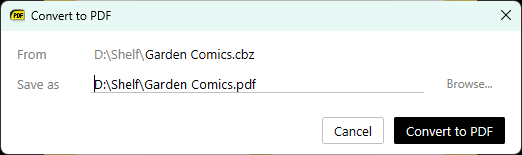
Limit comic and image zoom to the window
New advanced settings
ComicBookUI.LimitToWindowWidth / LimitToWindowHeight (and the same under ImageUI). When on, a fixed zoom level never makes a page wider or taller than the window. Each page is limited separately, so double-page spreads stay on screen while single pages can stay large (#2197).Extend a text selection from the keyboard
New commands Extend Selection One Character/Word Left/Right (
CmdExtendSelectionCharLeft, CmdExtendSelectionCharRight, CmdExtendSelectionWordLeft, CmdExtendSelectionWordRight) grow or shrink a selection however you started it (mouse, double-click, Ctrl + A or F7). They have no default shortcut, so assign your own in the Shortcuts advanced setting (discussion #5922).Fit Content improvements
Fit Content (
Ctrl + 3) now works on print-ready PDFs by ignoring crop and registration marks outside the page. It also trims margins correctly in Single Page, Facing and Book View. In continuous modes the mouse wheel now scrolls instead of jumping a page. The Shrink / Fit to printable area print options use the same detection and also benefit.Explorer preview for more FictionBook files
Windows Explorer previews and thumbnails now work for plain
.fb2 files and zipped FictionBook files (.fb2z, .fbz, .zfb2, .fb2.zip). Reinstall or re-enable the preview handler to get the new extensions (#1677).Bigger tab close buttons for touch
The close button on tabs grows with the tab height and is easier to hit, especially on touch screens (#5220).
