Color, thickness and default color from every annotation button
in 3.7 pre-rel
Every annotation button on the Edit PDF toolbar now has a color drop-down. The color you pick there is the default for the next annotation of that type and is saved in its own setting (
Annotations.LineColor, SquareColor, InkColor, …). The Ink drop-down adds a stroke preview and a Thickness slider (Annotations.InkBorderWidth). For squares, circles and polygons, border color and width are set in one Border Color and Width drop-down.Sliders for annotation sizes and opacity
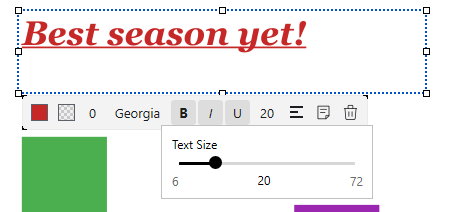
On a selected annotation’s property row, Border Width, Text Size and Opacity are now picked with a slider popup that shows the current value, instead of a menu of fixed values.
Highlighter highlights selected text
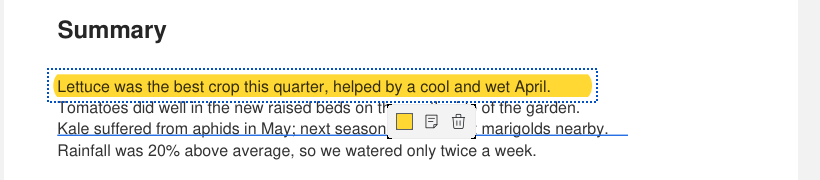
The Highlighter tool (
CmdAnnotationHighlightBrush, Edit PDF toolbar) is a mode: every text selection you make while it’s on becomes a highlight, until you press Esc or Enter. Freehand translucent marker strokes are drawn with Ink, which is translucent yellow by default and has its own color list (Annotations.InkColors).Annotation editing polish
In Edit PDF mode, while an annotation is selected, a click elsewhere only deselects it. Other annotations, links and text selection don’t react to that click. The toolbar and hover card for highlight, underline and similar markups appear at the mouse. The free text edit box uses the annotation’s color. Comment popups size themselves to their text and open next to the annotation.
ShowFileNavigateHint setting
Closing the “open next file” hint at the end of a document now stops it from showing again. The
ShowFileNavigateHint setting turns it back on (#6188).