Color drop-down and opacity-aware color picker for annotations
in 3.7 pre-rel
The highlight, underline, squiggly and strike out buttons, and the color chip of a selected annotation, open a color drop-down. It shows the preset colors (
Annotations.PresetColors) as swatches, plus a button for the full color dialog. That dialog now has an Opacity slider, so an annotation’s color includes its opacity. Clicking a markup color with text selected marks up the selection in that color. The Change Tab Color dialog uses the same picker, which has a Remove button and adds a new empty swatch each time you define a color.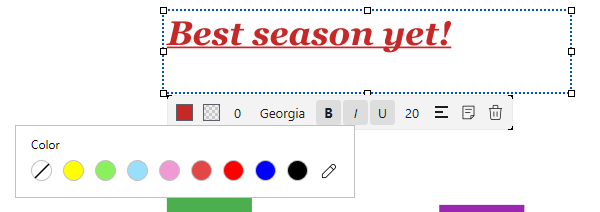
Click selects annotations; restyled comment card
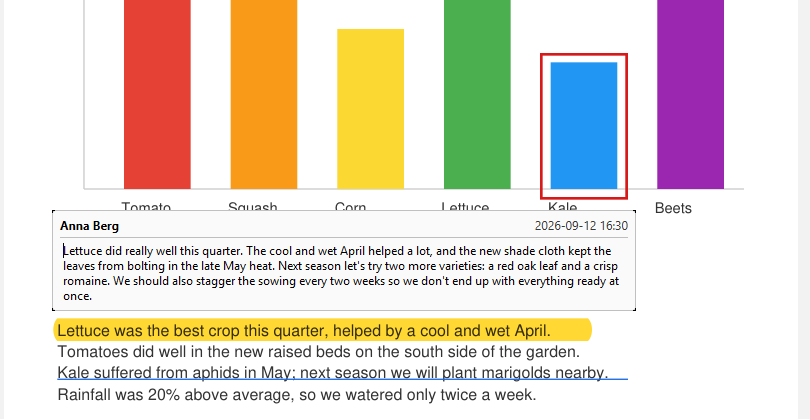
In Edit PDF mode, clicking any annotation, including highlights, selects it and shows its toolbar. Outside Edit PDF, the comment card shows the author, the date and the text in a cleaner, theme-aware style. The Apply Redactions toolbar button appears only after you’ve made redaction marks in this session.