Text snippets
in 3.7 pre-rel
The new
TextSnippets setting defines text you insert often, such as an approval line or your name. Each snippet has a Name, a Text (\n starts a new line) and an optional Key shortcut. Insert a snippet as a free text annotation from right-click → Annotations → Create Under Cursor → Insert Text, the command palette, or its shortcut.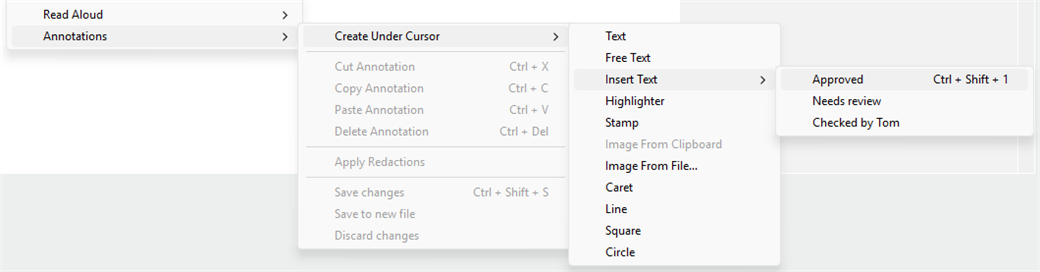
Sign With Image
New Sign With Image command (
CmdSignWithImage) stamps your signature image on the page without asking for a file. Set the image with the Annotations.SignatureImage setting. It is in right-click → Annotations → Create Under Cursor, the right-click Document submenu and the command palette.Move annotations with the arrow keys
In Edit PDF mode, the arrow keys move the selected annotation by one pixel, and
Shift + arrow by 10 pixels. Moving an annotation with a border no longer makes it grow a little each time.AlwaysShowSidebar setting
With
AlwaysShowSidebar = true, every document that has bookmarks opens with the Bookmarks sidebar shown, even if you hid it when you last closed that document.Installer option to skip the desktop shortcut
The installer has an Install desktop shortcut option (on by default). Upgrades and auto-updates keep the choice of the previous installation, so if you turn it off once, later updates won’t re-create the shortcut. For silent installs use
-no-desktop-shortcut (discussion #6255).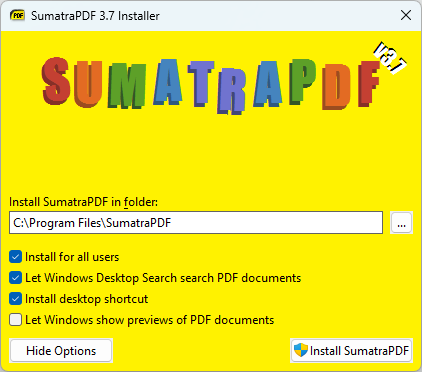
Esc leaves presentation before closing
With
EscToExit = true, Esc in presentation or fullscreen mode now leaves that mode first. Pressing Esc again closes SumatraPDF (#6250).Scroll and zoom the citation preview with the wheel
When the mouse is over a citation’s hover preview, the mouse wheel scrolls the preview and
Ctrl + wheel zooms it. With the mouse on the link, a horizontal wheel now scrolls the preview too, like Shift + wheel; some mouse software sends Shift + wheel that way (#6252).