Select text with the keyboard (caret browsing)
in 3.7 pre-rel
Press
F7 (Select Text With Keyboard, CmdSelectTextViaKeyboard) to put a text cursor on the page, like caret browsing in a web browser. Move it with the arrow keys and hold Shift to select. Ctrl + arrows move by word and Home / End / PageUp / PageDown also work. v switches to Vim-style visual mode. Ctrl + C or y copies, and Esc or F7 exits (#4684, #4116).Keyboard shortcuts cheat sheet
Press
? to open a small window listing the most useful commands and their current shortcuts, including any you have changed (CmdToggleKeyboardHelp). It stays open next to the document until you press ? again or close it.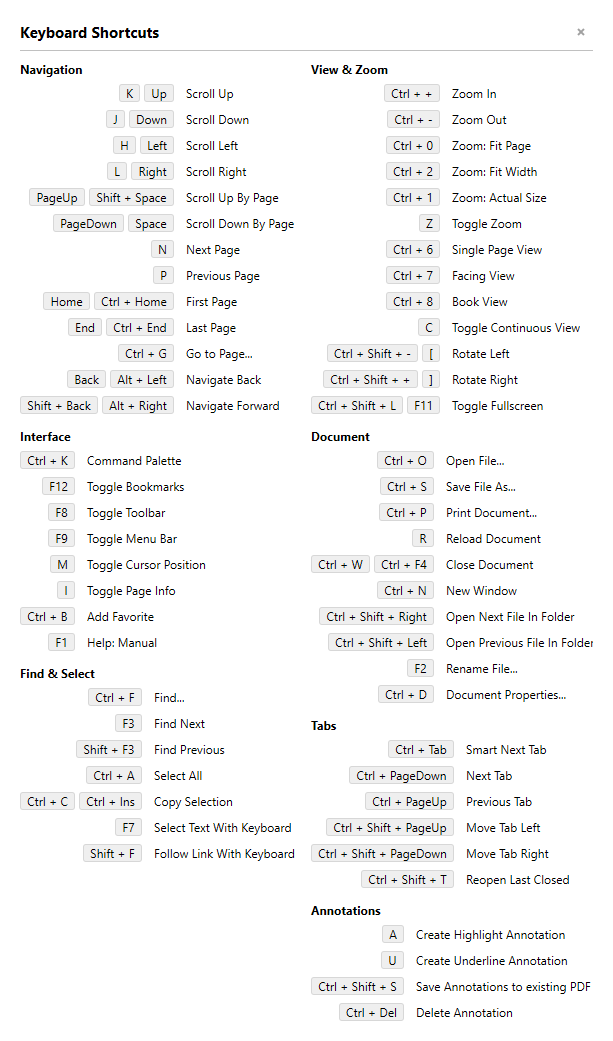
Choose the Open File picker
Open File (
Ctrl + O) can use either the standard Windows file picker or SumatraPDF’s built-in Navigate Files in Folder window. Choose with the FilePicker setting (os or sumatrapdf) or with Use SumatraPDF File Picker in File → Open (CmdToggleFilePicker). Open File With Windows File Picker (CmdOpenFileWithOSFilePicker) always opens the Windows dialog.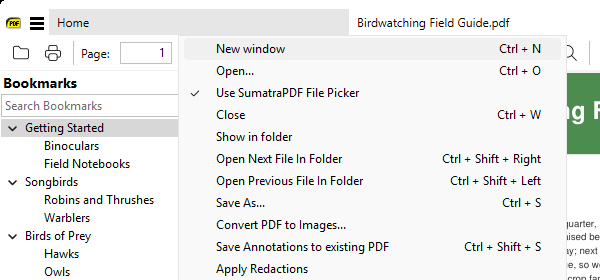
Manage home page history
On the home page,
Del removes the selected document from history. The right-click menu adds Delete File, which moves the file to the recycle bin and removes it from history. Show in folder opens SumatraPDF’s Navigate Files in Folder window in that file’s folder when the SumatraPDF file picker is on (FilePicker = sumatrapdf).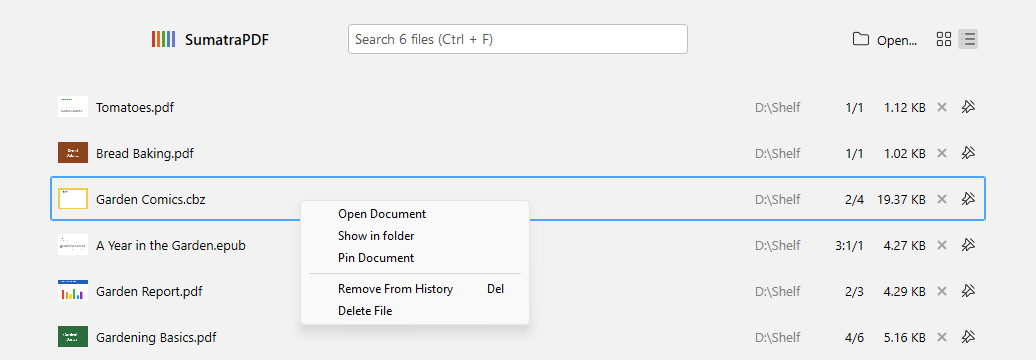
Toggle any setting with a shortcut
CmdToggleBoolSetting flips any true/false advanced setting. Bind it to a key or toolbar button with the setting name as an argument, e.g. CmdToggleBoolSetting Fullscreen.ShowMenubar (#5912).Fix lost default-app associations
If Windows no longer uses SumatraPDF for file types it was registered for, the home page shows a bar at the bottom with links to fix it. The Fix Default App For Extension command (
CmdFixDefaultApp .pdf) opens the Windows default-apps settings for that extension.Clearer "can't open file" errors
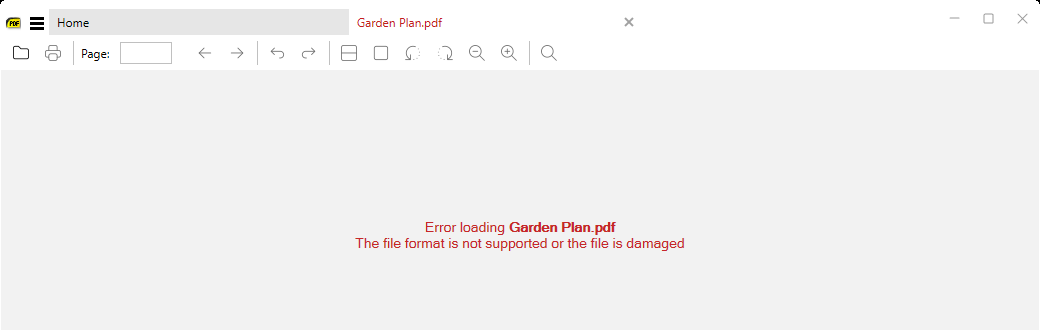
When a document fails to load, the error screen now says why: the file is gone, access is denied, it’s locked by another program, or it’s damaged or not supported. The message is shown in red with the file name in bold.