Place annotations interactively
in 3.7 pre-rel
Choosing Text, Line, Polyline, Square, Circle, Ink, Stamp or Caret from the Edit PDF toolbar or the command palette lets you place the annotation yourself. Stamps, carets and text notes follow the cursor as a preview until you click. For rectangles and ellipses, drag or click two corners (hold Shift for a square or circle). Ink draws freehand strokes. A polyline ends with a double-click, right-click, Space or Enter, and Esc cancels.
Edit line, polyline and polygon shapes
You can drag the end points of a line annotation, and the corner points of polyline and polygon annotations, to change their shape.
PDF redaction
The new Redact tool marks selected text, or an area you drag out, for removal. The marks show as red outlines and can be moved or deleted. Apply Redactions (
CmdApplyRedactions) permanently removes the marked content. You can undo it until you save the file.Delete the annotation under the cursor with Ctrl+Delete
Ctrl + Delete deletes the annotation under the mouse cursor, even when a different annotation is selected in the list.
-new-window-tabs command-line option
About box on the home page
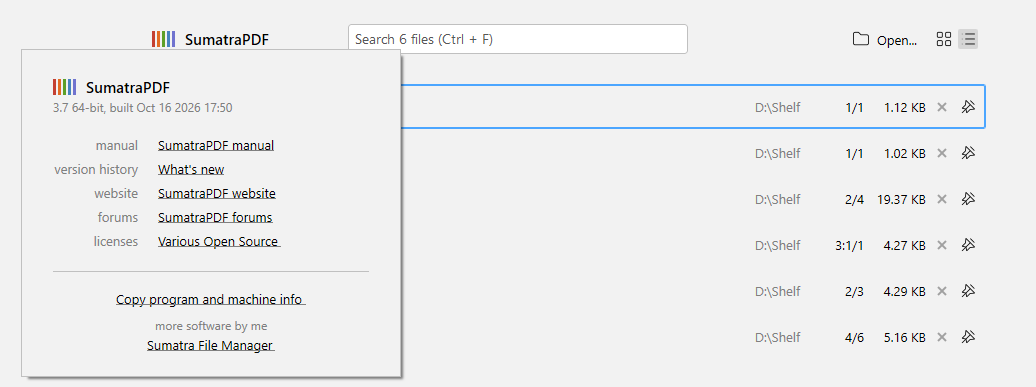
On the home page, hovering the SumatraPDF title shows the About box as a drop-down, with clickable links and the Copy program and machine info link. The About links now open the manual inside SumatraPDF and include a “What’s new” link to the version history.
Stop Reading always in the Read Aloud menu
Stop Reading is always in the Read Aloud menus, even when the playback bar is hidden, so you can always stop reading from the menu. It is greyed out when nothing is being read (#6053).
Theme colors for EPUB and other ebooks keep images intact
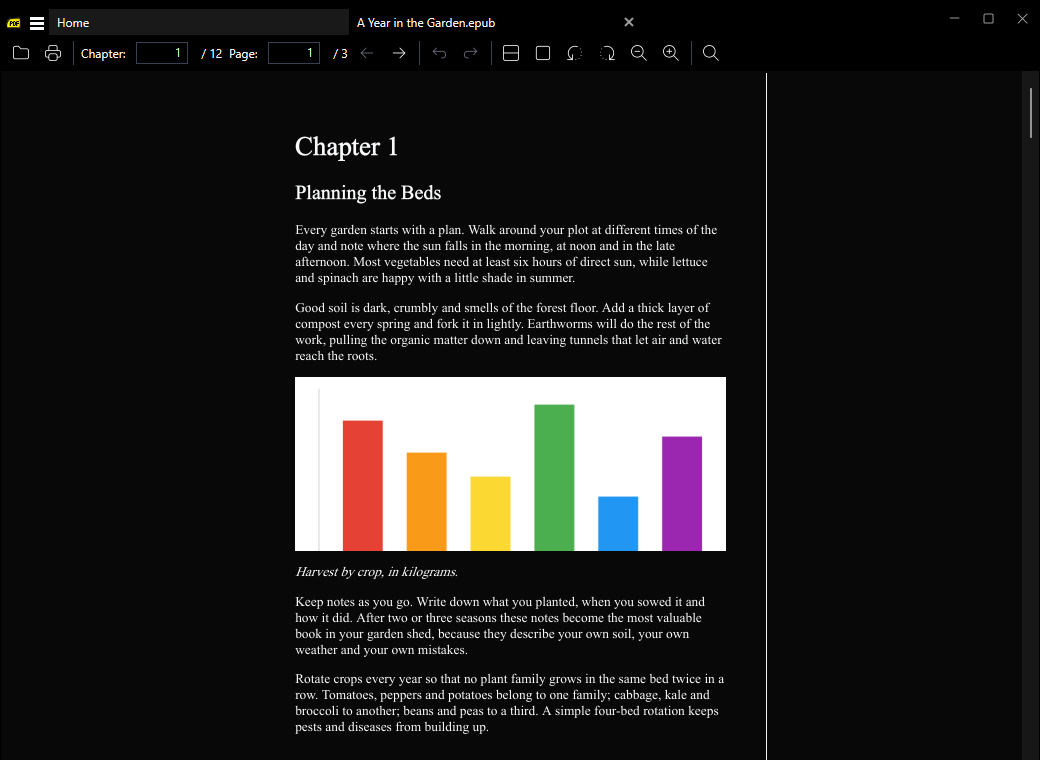
When page colors follow the theme, EPUB, HTML, FB2, MOBI and TXT documents get their colors through CSS instead of recoloring the whole rendered page. Images stay as they are in the file, even when inverting colors with
Shift + I (#6050).