Undo and redo for PDF edits
in 3.7 pre-rel
Undo (
Ctrl + Z) and Redo (Ctrl + Shift + Z) cover changes to a PDF, including annotations, form fields and applied redactions. Each action is one undo step. The Edit PDF toolbar has Undo and Redo buttons, which are greyed out when there is nothing to undo or redo. Commands: CmdUndo, CmdRedo.
Cut, copy and paste annotations
In Edit PDF mode, Ctrl + C copies the selected annotation and Ctrl + V pastes a copy at the mouse position. Ctrl + X cuts: the original is deleted only once the copy is pasted. These are also in the context menu and the command palette (
CmdCopyAnnotation, CmdPasteAnnotation, CmdCutAnnotation) (#5222).Edit free text annotations in place
Double-click a free text annotation, or press Edit text on its property row, to edit it right on the page. The editor uses the annotation’s own font and size and grows as you type. New free text annotations are placed with a live preview, just like stamps, and open the editor straight away. Ctrl + Enter, Esc or clicking away finishes editing.
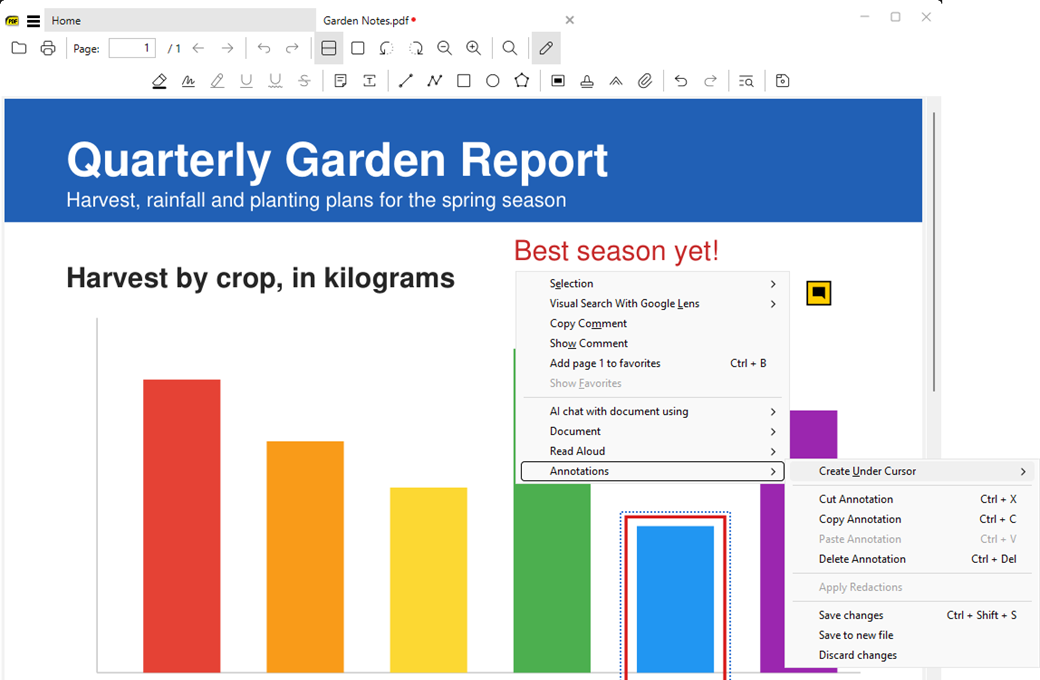
Annotations submenu and Save buttons in Edit PDF
The page context menu gathers everything annotation-related (create, cut / copy / paste / delete, apply redactions, save, save to new file, discard) under one Annotations submenu. The Edit PDF toolbar gets a Save button. Every annotation type that supports it gets an Opacity option (#6063). Rich media and 3D annotations can now be moved and resized.