Read an annotation's full comment with a click
in 3.7 pre-rel
Clicking an annotation outside Edit PDF mode opens a read-only card next to it with the whole comment. The text wraps, scrolls and can be selected and copied, and the card follows the annotation as you scroll. You can also use Show Comment in the context menu or the command palette (
CmdShowAnnotationText). Before, long comments were cut short in the tooltip (#4790).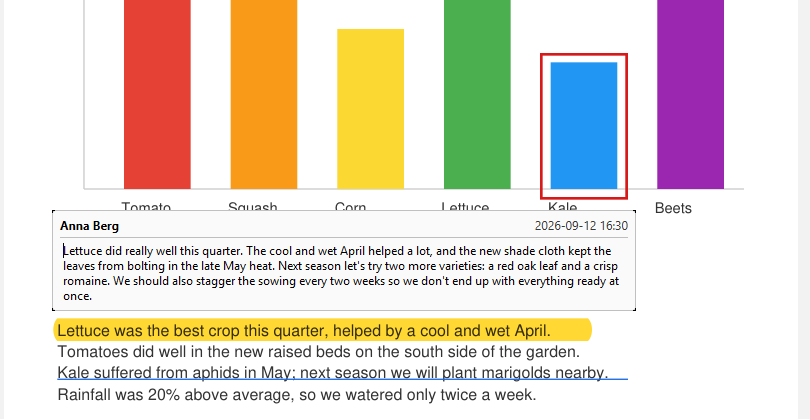
Zoom levels on hover
Resting the mouse on the toolbar’s zoom in / zoom out buttons opens a drop-down with every zoom level, arranged as a compact pyramid with the current level boxed. Click a level to jump straight to it. The drop-down uses the
ZoomLevels setting if you have one.Save menu on the Edit PDF toolbar
Resting the mouse on the Edit PDF toolbar’s Save button opens a menu with Save changes to followed by the file name, Save changes to a new PDF and Discard changes, with their keyboard shortcuts.
Redesigned Custom Zoom window
Custom Zoom (
Ctrl + Y), now titled “Zoom”, shows a text field with the full list of zoom levels under it, instead of a combo box. Up / Down move through the list, and you can type a level’s name (like “Fit Page”) or a percentage.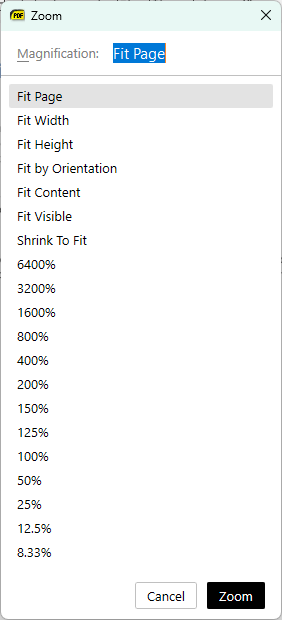
Annotation list moved to Find Annotation
The annotation search box is no longer on the main toolbar. The Edit PDF toolbar has a Find Annotation button (
CmdFindAnnotation) that opens a floating Annotations window with the search box and the list of annotations (#6086).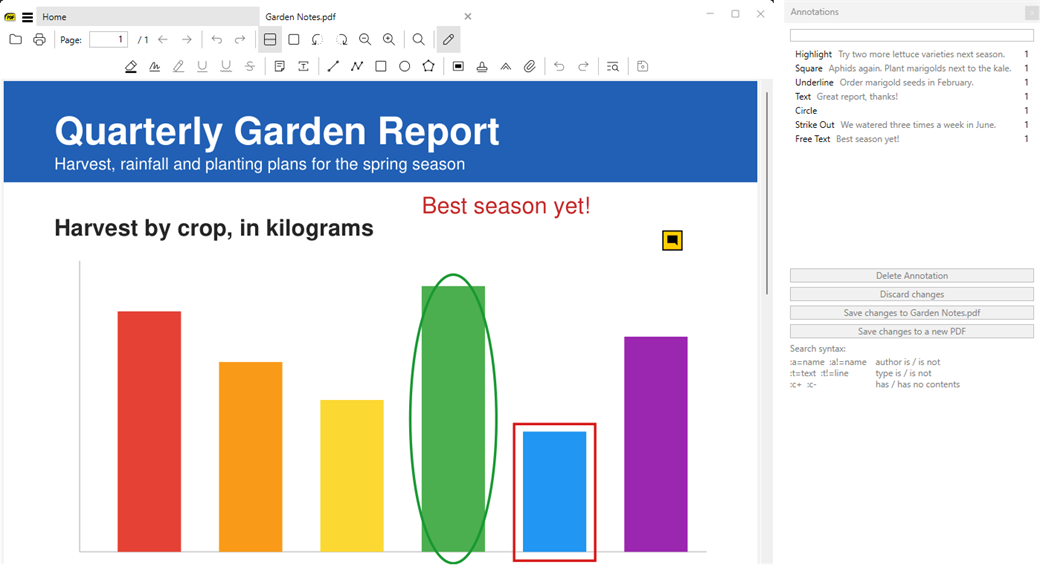
Copy screenshots and edited images
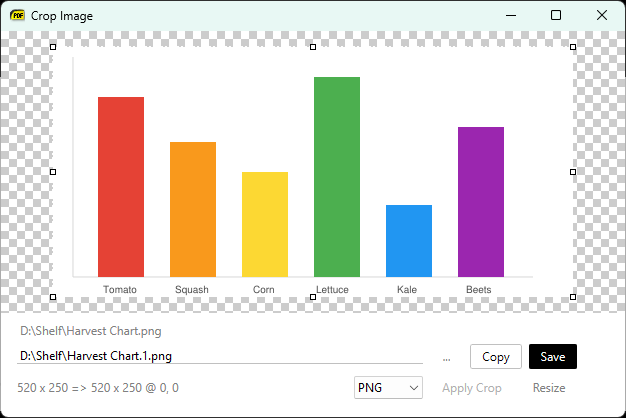
In the screenshot picker, Ctrl+C copies the selected screenshot to the clipboard at full size. The image editor has a Copy button (Alt+O) that copies the image with your crop and resize applied.
Transparent color hides text markup annotations
Setting the color of a highlight, underline, squiggly or strike-out annotation to Transparent now makes it invisible. Before, it showed up in a default yellow or black (#1994).