Redesigned home page
in 3.7 pre-rel
The home page is drawn around the covers: thumbnails keep their own proportions with a hairline and a shadow, the page count is under the file name (
Page 24 of 47 while you are reading a document, with a thin yellow progress line along the cover’s bottom edge), and the keyboard selection is a ring in the text color. A small brand with the logo stripes sits in one header row with the search field, Open… and the view toggle. The toolbar separates its button groups with space instead of lines, and the tip at the bottom is a quiet line.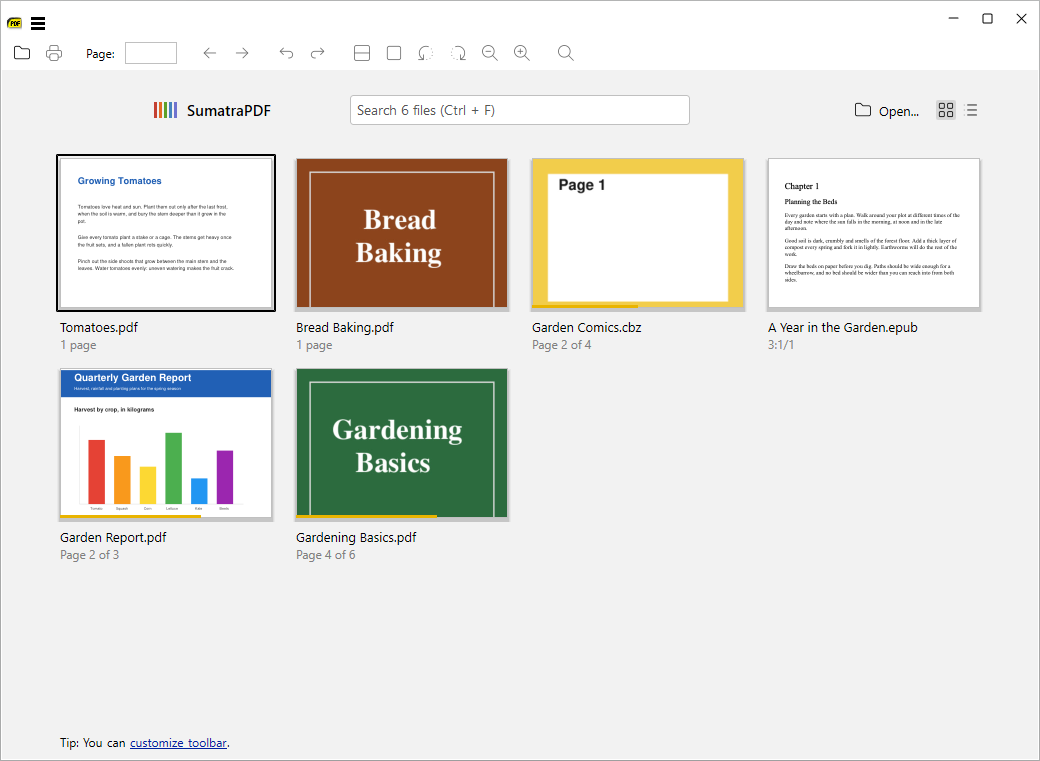
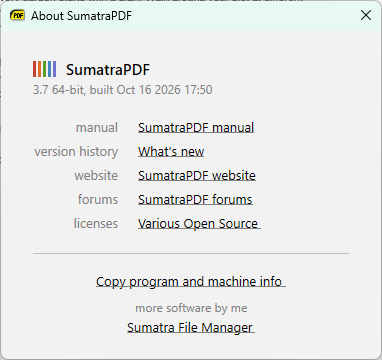
Redesigned About box
The About window shows the brand over one version line, quiet right-aligned labels with the links in the text color, and the pre-release note as a short line with a yellow mark. Under a hairline, the Copy program and machine info link and the other software are centered. The home page’s About drop-down and the About page (when the start page is off) show the same box.
Redesigned command palette
The command palette is a bare query line over a hairline, with the modes as one centered row, each with its key in a small outline (the active one in the text color). Rows have a rounded selection and muted shortcuts, matched letters are on a light tint of the yellow instead of a solid block, and a footer shows the Enter and Esc hints on the left and the match count (
26 of 212) on the right. Search matches on the home page use the same tint.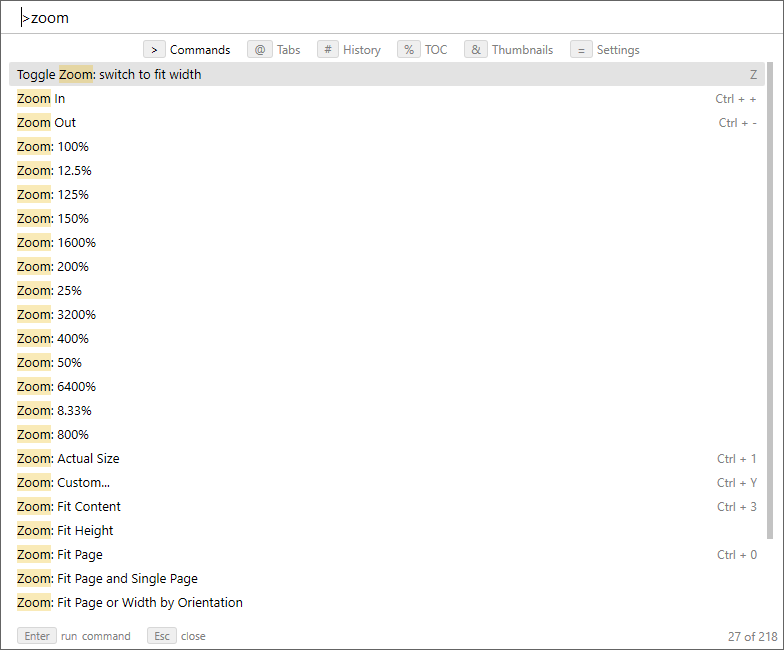
Redesigned Advanced Settings dialog
Advanced Settings has a bare filter line with the count (
14 of 212) on the right, compact rows with a rounded selection, and the dotted settings such as FixedPageUI.TextColor grouped under section headers that show the group’s comment. A value that differs from its default is drawn in the text color (defaults are muted), a yellow dot marks an unsaved edit and color settings get a swatch. The help strip under the list shows the selected setting’s name, its default and its comment. The footer has the key hints and quiet Open Settings File and Help on the left, Unsaved changes: n, Cancel and a filled Save on the right.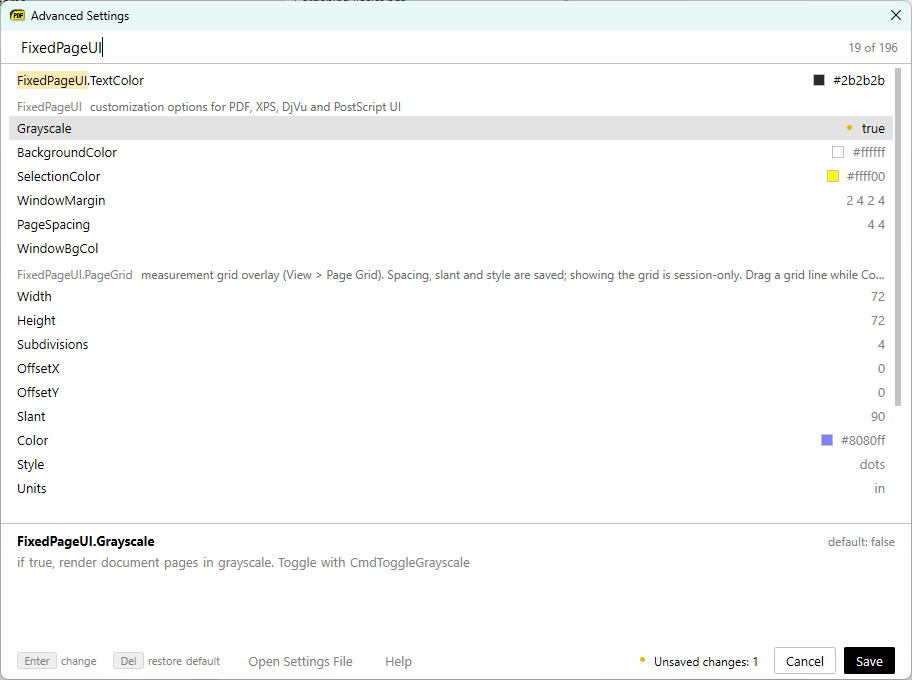
Redesigned PDF tool dialogs
Extract Pages, Delete Pages, Extract Text, Bake, Compress, Decompress, Encrypt, Decrypt, Convert to PDF, Convert PDF to Images and Save Selection As Image are redrawn like the command palette. What the tool asks for comes first in a larger font: the page range with the number of pages it picks (
4 of 7 pages; an unusable range fades the count and disables the action), the password, or the pages and the DPI. Under a hairline, From shows the source and Save as the destination with the format drop-down and Browse…, and the footer has a hint such as Ranges: 2, 5-7, 13-, Cancel and the filled action button. The dialogs can be made wider by dragging, and open at that width the next time.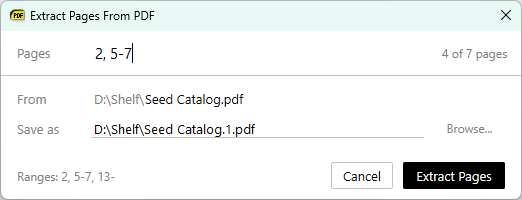
Redesigned Run PDF Script dialog
Run PDF Script… lists the script’s arguments as labelled fields with quiet Browse… and Remove, then the script in a bare monospaced editor that takes the rest of the resizable window, and the output under a hairline once there is some. The footer has the
Ctrl + Enter hint (it runs the script), Example Scripts, Help, Reset, Cancel and a filled Run Script. Example Scripts opens the list of included scripts beside the editor, and Reset puts the dialog back the way it opened: the first script, its arguments and no output.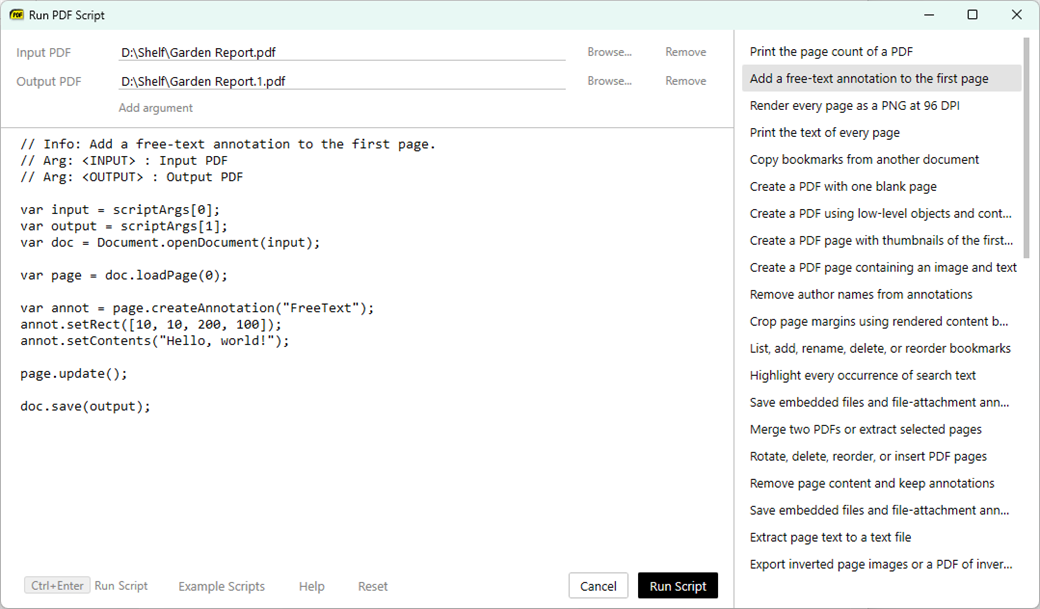
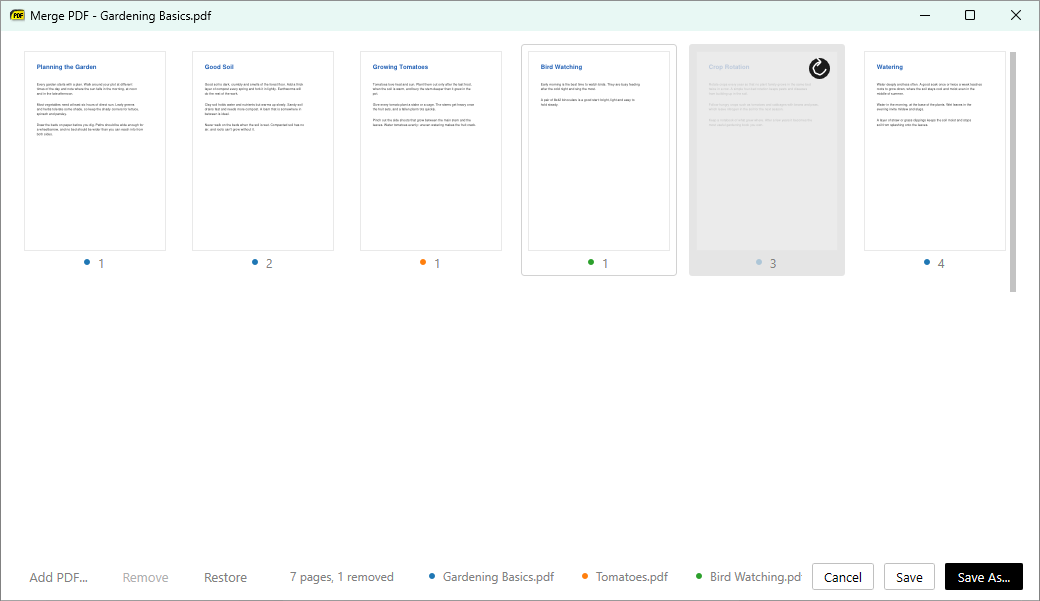
Redesigned Merge PDF window
In Merge PDF, pages fill the window edge to edge with a hairline edge, and the page number under each page follows a dot in its file’s color (instead of a color strip and a label on the page). Selection and hover are a rounded frame around page and number, and the remove / restore buttons are monochrome. The footer has quiet Add PDF…, Remove and Restore, the status and the file legend, then Cancel, Save and a filled Save As…. The Add PDF question has the same look.
Redesigned dialogs
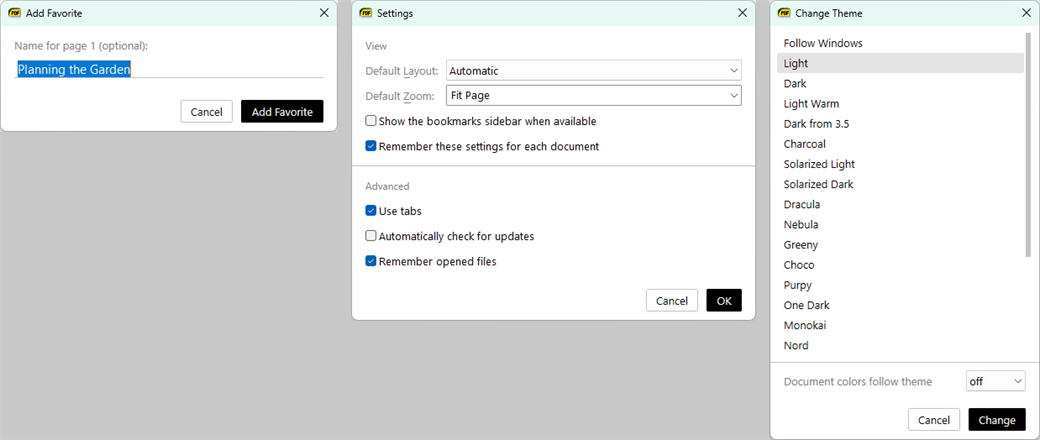
The other dialogs got the same look: theme background, muted labels in one column, underlined fields, sections between hairlines, lists with a rounded selection, and a footer with an outlined Cancel beside one filled default button (quiet actions such as Reset, Delete or Help on the left). This covers Document Properties (selectable monospaced text, Copy To Clipboard), Go To Page, Enter Password, Add Favorite, Zoom, Change Language, Change Theme, Change Scrollbar, Set Inverse Search Command Line, eBook Settings, Configure Page Grid, Save / Restore Tab Group, Change Colors, Settings (Options), Sign Document, the image editor’s controls, Translate Selection and Set Screenshot Hotkey.
OCR and barcodes in the command-line tools
The command-line tools can read and write barcodes and recognize text in scanned pages.
sumatrapdf-tool barcode creates a QR code (or another of 20 formats) from text and reads the barcodes on a page or image. draw -F ocr.txt / ocr.pdf recognizes the text of a scanned page with tesseract; it needs a tesseract language file (-d or TESSDATA_PREFIX) (#5446).