SumatraPDF command line for scripts and AI agents
in 3.7 pre-rel
SumatraPDF.exe cli <command> reads and converts documents from a terminal, a script or an AI agent: text, Markdown, search, table of contents, annotations and page images of every format SumatraPDF opens, PDF page tools, and --json output.Export as Markdown
Export as Markdown… (
CmdExportMarkdown, Document menu, next to Extract Text From Document) writes the pages you pick as Markdown, as SumatraPDF cli markdown does: headings taken from the fonts, bold and italic, lists and tables, without running headers and page numbers, and with pictures saved next to it.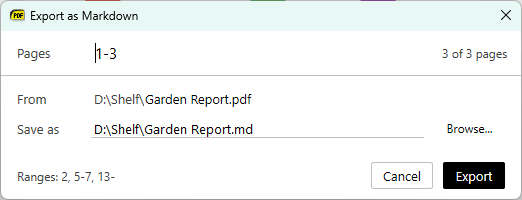
Export annotations
Export Annotations… (
CmdExportAnnotations, next to Export as Markdown) saves a PDF’s annotations as Markdown or CSV.Make PDF From Images
Make PDF From Images… (
CmdImagesToPdf, next to Merge PDF) makes a PDF from the pictures you pick, one page per picture, in name order.Smaller PDFs with Compress PDF
Compress PDF can make PDFs with pictures much smaller: the new Pictures drop-down scales color and gray pictures down to 150 dpi (Balanced) or 96 dpi (Smallest, for email) and saves them as JPEG. Text, drawings and fonts don’t change. Same quality, the default, is the lossless compression as before.
SumatraPDF cli compress takes --quality same|balanced|smallest.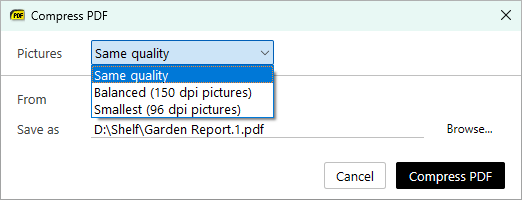
Watermarks and page numbers in any script
Add Watermark and Add Page Numbers (and
cli watermark, cli number) take text in any script. Text that Helvetica can’t show (Thai, Arabic, Hindi, Polish letters, …) is drawn in a system font, shaped and right to left as needed, with only the letters used embedded. Search and copy find it.Go on to the next file at the end of a document
At the end of a document, going on (
N, Page Down, Space, the arrow keys) offers the next file in the folder, and going on again opens it, also in presentation mode, which stays on. The mouse wheel only shows the offer. ShowFileNavigateHint = false turns it off.Strikethrough and vertical alignment in text boxes
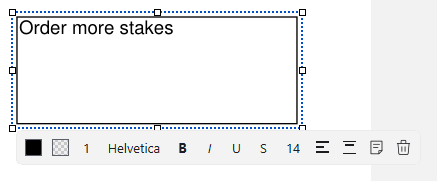
Text boxes (free text annotations) can be struck through (S, next to B, I, U) and have a Vertical Alignment button that puts the text at the top, middle or bottom of the box. Both are saved in the PDF.
SumatraPDF Web files on the home page
With SumatraPDF Web linked, the home page marks documents that are on the server with a Server badge, or Server ≠ when the server has a file of that name with other content. Files are matched by content, so a renamed or moved copy counts; the tooltip names the server file when its name differs. Files that are only on the server are listed after the local ones and open by downloading. The home page context menu has Upload to Server and Delete from Server (both ask first), and Delete File reads Delete local. The last list is kept, so this works offline too.
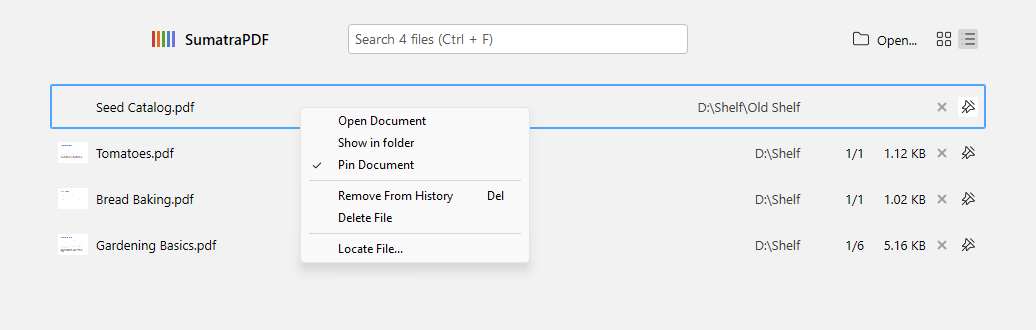
Locate File
Locate File… (
CmdLocateFile, home page context menu) is for a file that was moved: pick where it is now, and its history entry follows it there.