SumatraPDF is a common PDF previewer for LaTeX on Windows. It opens quickly and reloads when the PDF is rebuilt, and it supports SyncTeX so you can jump between source and PDF. Typst users on Windows use it the same way for live PDF reload (see Typst). Typst does not emit SyncTeX.
If you edit or compile LaTeX inside WSL, see LaTeX integration with WSL. Editors can also drive Sumatra with DDE commands, but prefer the command-line
-forward-search when possible, because it is simpler and works with Unicode.SyncTeX: forward and inverse search #
Compile with SyncTeX enabled (most tools use
-synctex=1 or an equivalent). The compiler then writes a .synctex or .synctex.gz file next to the PDF.| Direction | Who starts it | What happens |
|---|---|---|
| Forward search | Editor → Sumatra | Jump from a .tex line to the matching place in the PDF (highlight). |
| Inverse search | Sumatra → editor | Double-click (or inverse-search click) in the PDF opens the matching source line in your editor. |
Forward search is usually configured in the editor (viewer command / external PDF viewer). Inverse search is configured in Sumatra via the inverse-search command line (below).
Recommended Sumatra settings (Advanced Settings or once via the inverse-search dialog):
EnableTeXEnhancements = true
ReuseInstance = true
ReloadModifiedDocuments = true
- EnableTeXEnhancements: shows TeX-related UI (including inverse-search options) and enables inverse search on click when configured.
- ReuseInstance: one Sumatra process reuses the open window when the editor launches the viewer again (avoids many windows).
- ReloadModifiedDocuments: reloads the PDF after LaTeX rebuilds it.
Inverse search command line (InverseSearchCmdLine) #
Purpose: when you inverse-search in the PDF, Sumatra builds a process command line from this pattern and launches your editor at the matching source file and line.
Where to set it (any one of these):
Ctrl + K,Set Inverse Search Command Linecommand in Command Palette (detects common editors and enables TeX enhancements on OK)- Settings → Options (when TeX enhancements are on) → inverse-search field
- Advanced setting
InverseSearchCmdLineinSumatraPDF-settings.txt - One-shot via command line:
-inverse-search "<command-line>"(writes the same setting)
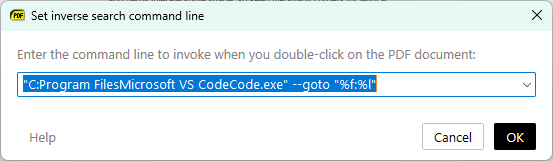
Placeholders (replaced by Sumatra when launching the editor):
| Token | Meaning |
|---|---|
%f |
Full path of the source .tex file |
%l |
Line number (1-based) |
%c |
Column (when available; often 0) |
Use quotes around paths that may contain spaces. Adjust executable paths to match your install (Program Files vs Program Files (x86), user installs, portable layouts).
Example (Notepad++):
"C:\Program Files\Notepad++\notepad++.exe" -n%l "%f"
Setup by editor / environment #
Each section follows the same steps. First, configure Sumatra inverse search. Second, configure the editor to open Sumatra and run forward search. Third, compile with SyncTeX.
Paths below use common 64-bit install locations; change them if yours differ.
TeXstudio #
1. Inverse search (in Sumatra)
"C:\Program Files\TeXstudio\texstudio.exe" "%f" -line %l
2. Viewer / forward search (in TeXstudio)
- Options → Configure TeXstudio → Commands (or Build)
- Set External PDF viewer / PDF viewer command to something like:
"C:/Program Files/SumatraPDF/SumatraPDF.exe" -reuse-instance -forward-search "?c:am.tex" @ "?am.pdf"
TeXstudio’s
?c:am.tex, @ (line), and ?am.pdf expand to the current root source, line, and PDF. Older docs used -inverse-search on this same command line. Setting InverseSearchCmdLine once in Sumatra is enough and is easier to maintain.3. Use it
- Build with SyncTeX (default in TeXstudio PDF workflows).
- Forward: TeXstudio’s “Go to PDF” / jump to PDF action.
- Inverse: double-click in Sumatra.
Visual Studio Code / Cursor (LaTeX Workshop) #
Install the LaTeX Workshop extension. LaTeX Workshop does not officially support SyncTeX with an external viewer. The setup below works with Sumatra.
1. Inverse search (in Sumatra)
Set this once (
Ctrl + K, Set Inverse Search Command Line command in Command Palette, or Advanced Settings). Overwrite InverseSearchCmdLine in place. If you paste it under the “Settings below are not recognized” footer, Sumatra ignores it.Prefer the
code / cursor CLI on PATH, or a full path to the .cmd launcher:"C:\Users\<you>\AppData\Local\Programs\Microsoft VS Code\bin\code.cmd" -r -g "%f:%l"
-r reuses the existing VS Code window, and -g "%f:%l" opens file %f at line %l (lowercase L). Using .cmd (not only Code.exe) avoids some inverse-search failures on Windows. For Cursor, use the analogous cursor.cmd path.If the
.cmd launcher still fails, launch through Electron’s CLI:"C:\Users\<you>\AppData\Local\Programs\Microsoft VS Code\Code.exe" "C:\Users\<you>\AppData\Local\Programs\Microsoft VS Code\resources\app\out\cli.js" --ms-enable-electron-run-as-node -r -g "%f:%l"
Also set
EnableTeXEnhancements = true (the inverse-search dialog does this on OK).2. External viewer (in VS Code
settings.json)Ctrl + Shift + P → Preferences: Open User Settings (JSON). Point viewer.command / synctex.command at your Sumatra (installer under C:/Program Files/SumatraPDF/, or portable under %LOCALAPPDATA%/SumatraPDF/).{
"latex-workshop.view.pdf.viewer": "external",
"latex-workshop.view.pdf.external.viewer.command": "C:/Program Files/SumatraPDF/SumatraPDF.exe",
"latex-workshop.view.pdf.external.viewer.args": ["-reuse-instance", "%PDF%"],
"latex-workshop.view.pdf.external.synctex.command": "C:/Program Files/SumatraPDF/SumatraPDF.exe",
"latex-workshop.view.pdf.external.synctex.args": ["-reuse-instance", "-forward-search", "%TEX%", "%LINE%", "%PDF%"]
}
%TEX%, %LINE%, and %PDF% are LaTeX Workshop placeholders. Do not add -inverse-search "..." here once Sumatra already has InverseSearchCmdLine. Sending it on every jump can cause problems.3. Use it
- Build so SyncTeX is produced (LaTeX Workshop recipes usually pass
-synctex=1). - View PDF: LaTeX Workshop View LaTeX PDF file in external viewer.
- Forward: SyncTeX from cursor (
Ctrl + Alt + J). - Inverse: double-click in Sumatra, and VS Code focuses
%fat line%l.
For LaTeX inside WSL Remote, see LaTeX integration with WSL (TexLab, not LaTeX Workshop).
TeXworks #
1. Inverse search (in Sumatra)
"C:\Program Files\MiKTeX\miktex\bin\x64\texworks.exe" -p=%l "%f"
Use your TeX Live or standalone TeXworks path if it differs.
2. Viewer (in TeXworks)
- Edit → Preferences → Typesetting (or Preview)
- PDF viewer: SumatraPDF, or a custom command:
"C:\Program Files\SumatraPDF\SumatraPDF.exe" -reuse-instance "$fullname.pdf"
Enable SyncTeX in the typesetting tool arguments (
-synctex=1 on pdfLaTeX/XeLaTeX/LuaLaTeX). TeXworks’ “jump to PDF” uses SyncTeX when the viewer supports it. With Sumatra, forward search is often:"C:\Program Files\SumatraPDF\SumatraPDF.exe" -reuse-instance -forward-search "$fullname.tex" $line "$fullname.pdf"
The exact placeholders depend on the TeXworks version. Use its help for the
$fullname and line variables.WinEdt #
WinEdt has built-in SumatraPDF integration.
1. PDF viewer (in WinEdt)
- Options → Execution Modes → PDF Viewer
- Uncheck Auto-detect if needed, choose SumatraPDF, or browse to
SumatraPDF.exe.
WinEdt’s macros typically call Sumatra with
-forward-search (preferred over older DDE).2. Inverse search (in Sumatra)
"C:\Program Files\WinEdt Team\WinEdt\WinEdt.exe" "[Open(|%f|);SelPar(%l,8)]"
3. Use it
- Compile with SyncTeX enabled in the execution mode.
- Forward: WinEdt’s PDF preview / search commands.
- Inverse: double-click in Sumatra.
TeXnicCenter #
1. Inverse search (in Sumatra)
"C:\Program Files\TeXnicCenter\TeXnicCenter.exe" /nosplash /ddecmd "[goto('%f', '%l')]"
2. Output profile viewer (in TeXnicCenter)
- Build → Define Output Profiles (
Alt + F7) → PDF profile → Viewer - Executable path:
C:\Program Files\SumatraPDF\SumatraPDF.exe(path only) - View project’s output: command-line argument
"%bm.pdf" - Forward search:
-reuse-instance -forward-search "%Wc" %l "%bm.pdf"
3. Sumatra
ReuseInstance = true,ReloadModifiedDocuments = true,EnableTeXEnhancements = true- Build and view once, then inverse-search with double-click.
Texmaker #
1. Inverse search (in Sumatra)
"C:\Program Files\Texmaker\texmaker.exe" "%f" -line %l
2. Viewer (in Texmaker)
- Options → Configure Texmaker → Commands
- External viewer:
"C:/Program Files/SumatraPDF/SumatraPDF.exe" -reuse-instance %.pdf
For SyncTeX forward search (if your Texmaker version supports a dedicated “built-in + external” / jump option), use:
"C:/Program Files/SumatraPDF/SumatraPDF.exe" -reuse-instance -forward-search %.tex @ %.pdf
%.tex, %.pdf and @ are Texmaker placeholders for the root name and line.Make sure PdfLaTeX (and the other compile commands) includes
-synctex=1.Notepad++ #
Notepad++ is not a full LaTeX IDE, so pair it with a build tool (e.g. NppExec with
latexmk, or an external Makefile).1. Inverse search (in Sumatra)
"C:\Program Files\Notepad++\notepad++.exe" -n%l "%f"
2. Open / forward search
Run Sumatra from NppExec or the Run dialog with a command like the one below, and change the paths to match your macros:
"C:\Program Files\SumatraPDF\SumatraPDF.exe" -reuse-instance -forward-search "$(FULL_CURRENT_PATH)" $(CURRENT_LINE) "$(CURRENT_DIRECTORY)\$(NAME_PART).pdf"
Sublime Text (LaTeXTools or similar) #
1. Inverse search (in Sumatra)
"C:\Program Files\Sublime Text\sublime_text.exe" "%f:%l:%c"
2. LaTeXTools
In LaTeXTools settings, set the Windows viewer to SumatraPDF (or the package’s Sumatra preset). LaTeXTools documents the forward-search invocation. It generally calls Sumatra with
-forward-search and -reuse-instance.Vim / gVim #
1. Inverse search (in Sumatra)
The simplest command opens the file at the line:
"C:\Program Files\Vim\vim91\gvim.exe" --remote-silent +%l "%f"
Or use a
--remote-send form with a custom callback (see below).2. Forward search (example, Vim9 script in
ftplugin/tex.vim):def ForwardSearch()
var root = expand('%:p:r')
system($'SumatraPDF.exe -reuse-instance -forward-search {root}.tex {line(".")} {root}.pdf')
enddef
nnoremap <buffer> <F5> <ScriptCmd>ForwardSearch()<CR>
Use the full path to
SumatraPDF.exe if it is not on PATH.3. Optional callback inverse search
Define a global function the inverse-search line can call, then set:
gvim --servername GVIM --remote-send ":call BackwardSearch(%l, '%f')<CR>"
Your config needs a matching
BackwardSearch implementation.Emacs (AUCTeX) #
See AUCTeX and SumatraPDF on EmacsWiki for the maintained recipe.
Typical pieces:
- Inverse search (Sumatra):
"C:\...\emacsclientw.exe" -n +%l "%f"
Start an Emacs server first. - Forward search: AUCTeX viewer entry calling
SumatraPDF.exe -reuse-instance -forward-search %b.tex %n %o
The exact expandos depend on your AUCTeX viewer config.
LyX #
On Windows, set the PDF viewer to SumatraPDF under Tools → Preferences → File Handling → File Formats (PDF).
For jumps with SyncTeX, use a PDF viewer converter / view command that launches:
SumatraPDF.exe -reuse-instance "$o"
and set inverse search in Sumatra to your LyX executable with the arguments LyX documents for SyncTeX inverse search (they depend on the LyX version). See LyX + Sumatra forward/inverse search notes for a full walkthrough.
Typst #
Typst is a markup typesetter (not LaTeX). The Typst project recommends SumatraPDF on Windows because Sumatra reloads the PDF while
typst watch rewrites it and does not lock the file.The Typst CLI does not write SyncTeX (
.synctex / .synctex.gz). Sumatra’s forward search (-forward-search) and inverse search (double-click to source) need that file, so they do not work for .typ the way they do for LaTeX. To jump from the preview to the source, use Tinymist’s built-in preview, not Sumatra.1. Sumatra
ReuseInstance = true
ReloadModifiedDocuments = true
2. CLI
In the project directory:
typst watch main.typ
Open
main.pdf in Sumatra (or run typst compile --open main.typ once if Sumatra is the default PDF viewer). Each save rebuilds the PDF, and Sumatra reloads it.3. VS Code / Cursor (Tinymist)
Install Tinymist Typst. To keep a PDF next to the source for Sumatra:
{
  "tinymist.exportPdf": "onSave"
}
Use
"onType" to rewrite the PDF on every keystroke, which is heavier. Open the exported PDF in Sumatra. The inverse-search command line is the same as for LaTeX Workshop (code.cmd -r -g "%f:%l"), but without SyncTeX it will not jump to a line.4. Use it
- Edit the
.typfile. The compiler or Tinymist writes the PDF, and Sumatra reloads it. - Jumps between source and preview: use the Tinymist preview, not Sumatra.
Tips and troubleshooting #
- Always compile with SyncTeX (
-synctex=1). Without.synctex/.synctex.gz, jumps cannot map lines. Typst does not emit SyncTeX. See Typst. - Set inverse search once in Sumatra rather than putting a long
-inverse-search "..."into every editor viewer command. - Paths with spaces must be quoted. The placeholders
%f/%lgo outside or inside the quotes as in the examples. - PDF does not reload after build: set
ReloadModifiedDocuments = true, and avoid locking the PDF. Sumatra itself does not lock it, unlike some other readers. - Many Sumatra windows: set
ReuseInstance = trueand pass-reuse-instancefrom the editor when opening or forward-searching. - Wrong or missing inverse editor: use Set Inverse Search Command Line and pick a detected editor, or paste a command that works from a
cmdprompt with a sample file and line. - Accented / non-ASCII paths: use an editor launch line that handles Unicode, and prefer UTF-8 locale and editor settings (see also historical notes on inverse search and encoding).
- WSL sources: use LaTeX integration with WSL.
- DDE: still works for some editors (e.g. TeXnicCenter
goto). For new setups prefer-forward-searchand a normal process command for inverse search. See DDE Commands.
Related #
- Command-line arguments (
-forward-search,-inverse-search, forward-search highlight flags) - DDE Commands
- LaTeX integration with WSL
- Typst, Tinymist
- Advanced settings:
InverseSearchCmdLine,EnableTeXEnhancements,ForwardSearchhighlight options