Usesumatrapdf-tool.exeor SumatraPDF.exe with the same arguments.
Available in pre-release 3.7
In the application #
To extract text from a PDF in SumatraPDF:
- open a PDF document
Ctrl + K,Extract Text From Documentcommand in Command Palette
Or:
- open a PDF document
- right-click to open the context menu
- select
Document>Extract Text From Document
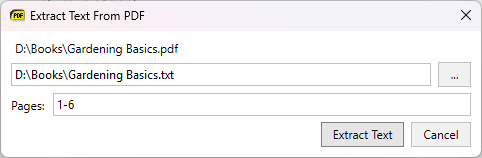
This extracts text from the document and saves it as a text file.
You can extract text from all pages or select a subset of pages.
From the command line #
You can use the SumatraPDF command line to extract text from a PDF file.
Extract all text from PDF #
sumatrapdf-tool convert -o output.txt input.pdfExtract text from selected pages of a PDF #
sumatrapdf-tool convert -o output.txt input.pdf 1-3,4,8-9This extracts text from pages 1, 2, 3, 4, 8, and 9.
Structured text #
PDF files don’t really contain text. Text is made of glyphs (characters) in a given font, positioned at
(x,y) coordinates on a page.Text extraction is based on heuristics, i.e. the program tries to identify words and lines based on the positions of characters.
Structured text is detailed information about every character on the page:
- font
- glyph
(x,y)position on the page- bounding box (area) of the glyph
For example, in XML format it looks like:
<font name="CharisSIL" size="7.9701">
<char quad="187.4652 295.9985 191.96033 295.9985 187.4652 301.9683 191.96033 301.9683" x="187.4652" y="301.871" bidi="0" color="#000000" alpha="#ff" flags="16" c="d"/>
This shows that the letter
d in the CharisSIL font is at a given x/y position on the page.You can use this output in your custom processing program.
Extract structured text from PDF in XML format #
sumatrapdf-tool draw -o foo.stext foo.pdfExtract structured text from PDF in JSON format #
sumatrapdf-tool draw -o foo.stext.json -F stext.json foo.pdfIt’s the same information but in JSON format.