If there are no other applications registered for a given extension, you can open the file in SumatraPDF by double-clicking the file in File Explorer.
If there is more than one application, you have to explicitly tell Windows 10+ to make SumatraPDF the default application.
Using File Explorer #
In File Explorer:
- find a
.pdffile (or any other supported file type) - right-click to open the context menu
- select
Open withand thenChoose another app
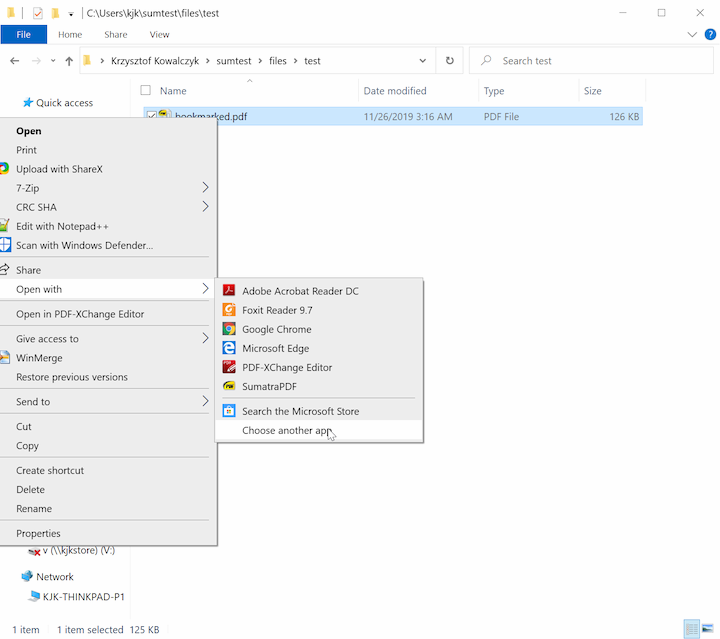
From the list, choose
SumatraPDF and check Always use this app to open .pdf files: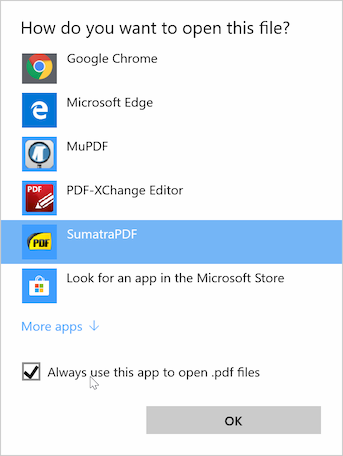
Using Default apps system settings #
The steps below are based on the latest Windows 11 build at the time of writing, and the details differ between Windows updates.
Open the
Default apps section of the Settings app. For example, press the Windows logo key to open system-wide search, type default apps, and click the Default apps search result.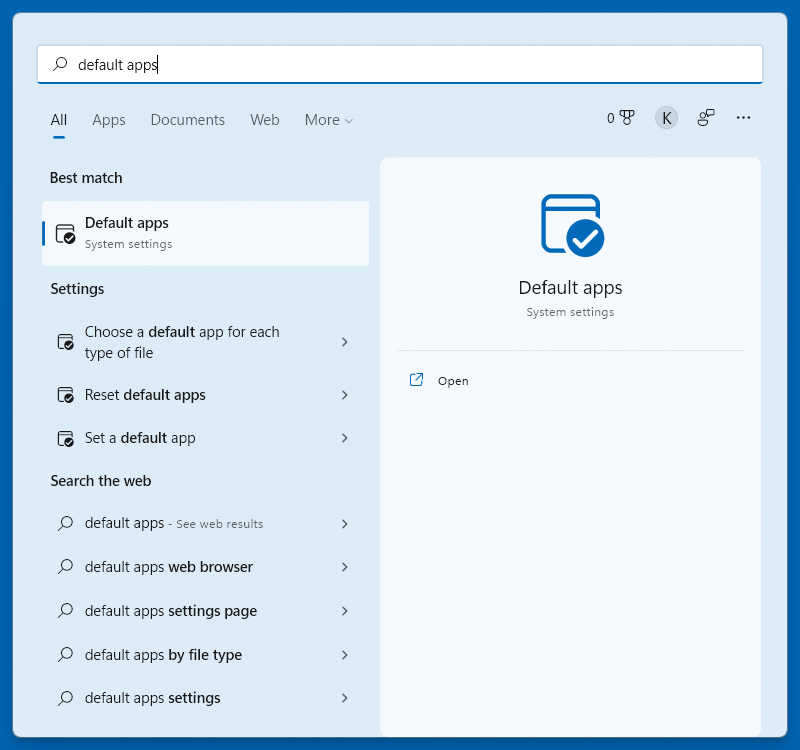
In Default apps, type
.pdf as the file extension: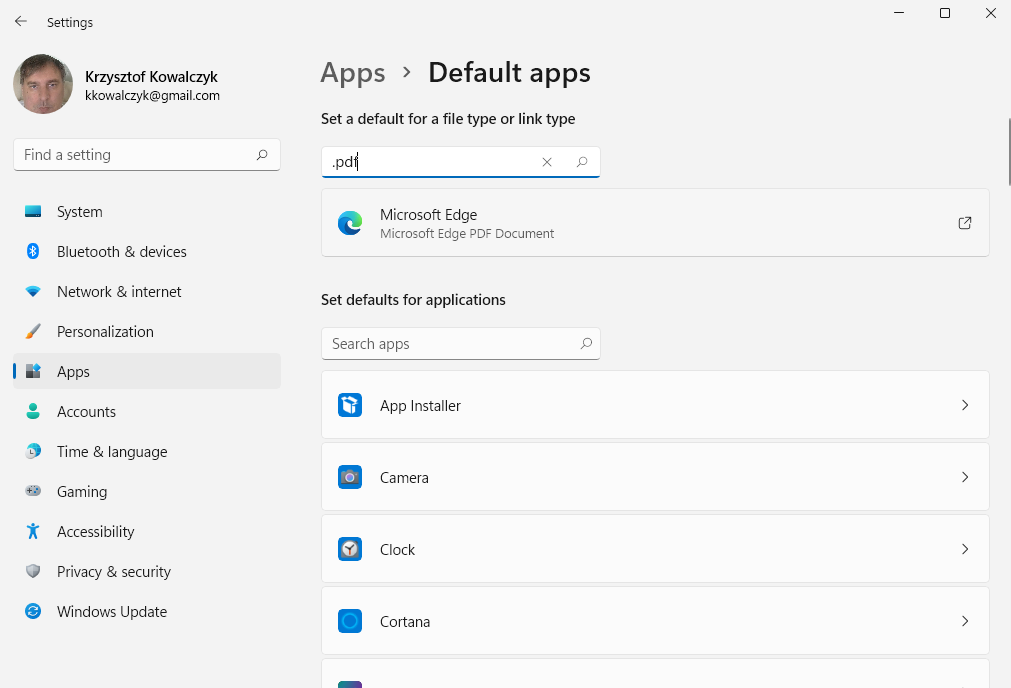
Click the current default PDF application (
Microsoft Edge in this example) and select SumatraPDF:You can do the same for other file formats.