Read Aloud reads document text with Windows text-to-speech. Start it from the toolbar, the main or context menu, or the Command Palette.
Available in pre-release 3.7+.
Most often you click the toolbar Read Aloud button to listen from the current position. At a glance:
- Read Aloud: reads the selection if there is one, otherwise from the first visible text to the end of the document.
- Start scopes: from top of the viewport, from the right-click position, or the selection only.
- Follow-along: the spoken sentence and word are underlined, and the view scrolls to keep them visible.
- Playback bar: document name, page, scope, Pause / Resume and Stop.
- Voice: pick any installed Windows voice.
Start reading #
Open a document with selectable text (PDF, EPUB, etc.), then use one of:
- Toolbar: click the Read Aloud button to start, pause or continue. The icon shows a speaker when idle or paused, and a pause symbol while speaking. The dropdown arrow has the explicit start scopes and Voice.
- Main menu: Read Aloud (after Selection).
- Context menu: Read Aloud (after Document).
- Command Palette:
Ctrl + K, thenRead Aloud(CmdToggleReadAloud). Also Start Reading From Top, Start Reading Selection.
Choose where to start #
| Command | Behavior |
|---|---|
| Read Aloud (toolbar / palette) | Selection if present, otherwise first visible text in the viewport; continues through the rest of the document |
| Start Reading From Top | First visible text in the viewport to the end of the document |
| Start Reading From Cursor Position | Context menu only. Right-click position to the end of the document (disabled when there is no text at the cursor) |
| Start Reading Selection | Selected text only; does not continue past the selection |
Scope labels on the playback bar: Smart start, From top, From cursor, or Selection.
Follow along #
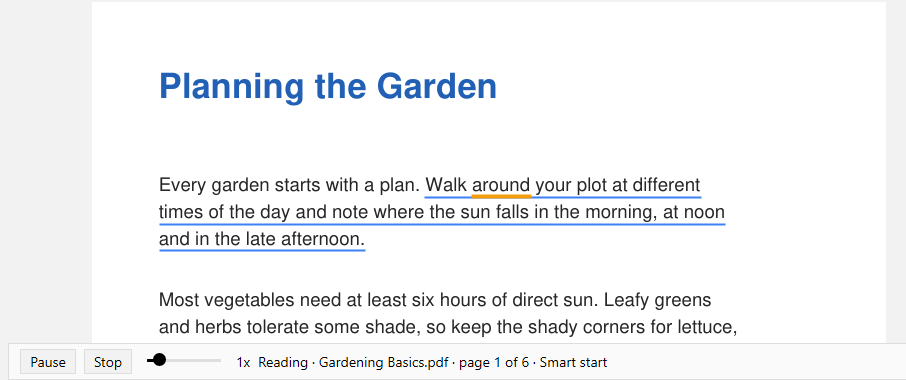
While a session is active (speaking or paused), a playback bar at the bottom of the canvas shows the document name, page X of Y, start scope, and Pause / Resume and Stop buttons on the left.
- Follow-along: the spoken sentence is underlined in blue, the current word in amber.
- Auto-scroll: the viewport scrolls to keep the spoken word in view. If you scroll the highlight fully off-screen, auto-scroll stops for that session, so you can scroll freely.
Pause, continue or stop #
- Pause stops speech and remembers your position so you can Continue Reading later.
- Stop ends the session and clears the resume position.
- Playback bar: Pause / Resume and Stop buttons.
- Menus: Stop Reading is always in the Read Aloud menus (main menu, context menu, toolbar dropdown), even if the playback bar is not visible. It is disabled when nothing is being read.
- Command Palette: Pause Reading, Continue Reading, and Stop Reading appear when they apply.
Switching to another tab stops reading and clears the resume position on the tab you left.
Change the voice #
Open Voice in any Read Aloud menu and pick System default or an installed Windows voice (WinRT OneCore voices and SAPI voices, including those from NaturalVoiceSAPIAdapter).
The choice is saved in
ReadAloudVoiceId in Advanced settings (SumatraPDF-settings.txt). Leave it empty for the system default.Tips #
- Select a paragraph, then use Start Reading Selection to hear only that part.
- Right-click a spot and use Start Reading From Cursor Position to start mid-page.
- Scroll the highlight off-screen to stop auto-scroll and browse while listening.
- Install NaturalVoiceSAPIAdapter for more voices.
Limitations #
- Uses Windows speech voices installed on your system (WinRT Speech Synthesis, plus SAPI voices such as NaturalVoiceSAPIAdapter).
- EPUB and complex layouts may be read in an order that does not match the visual layout.
- Copy-restricted documents cannot be read aloud (no message is shown).
- Pages with no extractable text show a short “No text available to read aloud” notification.
- Read Aloud does not replace a screen reader for blind users. See Accessibility for UI Automation and Narrator.
See also #
- Commands: Read Aloud commands
- Advanced settings:
ReadAloudVoiceId - Version history: 3.7 Read Aloud entry
- Accessibility: screen readers and other accessibility features