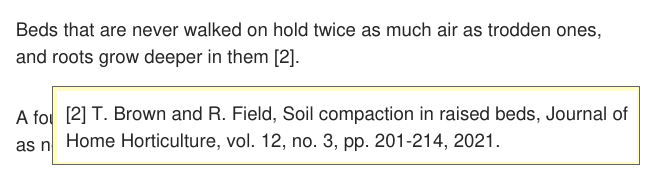
Hover a citation, footnote marker or figure reference and a popup shows what it points to: the bibliography entry, the footnote or the figure. You read it without leaving the page you’re on.
Available in version 3.7 or later.
Most often you hover a
[12] citation to see the reference behind it. At a glance:- Preview: hover a link to another place in the document; the popup shows the target
- Plain-text citations:
[12]references that aren’t links are previewed too - Scroll the popup:
Shift + wheelwith the cursor on the link, or the wheel with the cursor on the popup - Zoom the popup:
Ctrl + wheel, on the link or on the popup - Turn it on / off:
Toggle Citation Hover Previewin the Command Palette, orCitationHoverDelay
Turn the preview on or off #
The preview is off by default. To turn it on or off:
- Command Palette:
Ctrl + K, thenToggle Citation Hover Preview(CmdToggleHoverPreview). On sets a 300 ms delay. - Advanced settings:
CitationHoverDelayis how long, in milliseconds, you hover before the popup shows.-1turns the preview off.
CitationHoverDelay = 300
Preview a citation #
Hover the link and wait for the popup. It shows the region around the target: a whole bibliography entry, a footnote, an equation or a figure.
- Move the cursor away and the popup closes.
- Click the link to jump to the target as usual;
Alt + Leftcomes back. - Web links inside the popup can be clicked.
Read more of the target with the mouse wheel #
With the cursor on the link:
Shift + wheelscrolls the popup. It continues onto the previous or next page.Ctrl + wheelzooms the popup.- The plain wheel scrolls the document, as if the popup weren’t there.
With the cursor on the popup (it stays open while you move onto it):
- The wheel scrolls the popup.
Ctrl + wheelzooms it.
Note: some mouse software (Logitech Options+, Microsoft Mouse and Keyboard Center) sends
Shift + wheel as horizontal scrolling. That scrolls the popup too.Tips #
- Use
Shift + wheelto read a long reference entry without moving the mouse. - Move onto the popup when you want to read more of it: the plain wheel works there.
- Lower
CitationHoverDelay(e.g.150) if the popup feels slow, raise it if it gets in the way. - Use
Toggle Citation Hover Previewto switch it off for a document with many links.
See also #
- Hyperlinks — following links and coming back
- Scrolling, zooming, navigating — the wheel in the document
- Advanced settings —
CitationHoverDelay