See whether the digital signatures in a PDF are valid, including qualified signatures under EU Regulation 910⁄2014. SumatraPDF checks them when you open the PDF and shows the result above the document.
Available in pre-release 3.7
Note: signature validation is on Windows only.
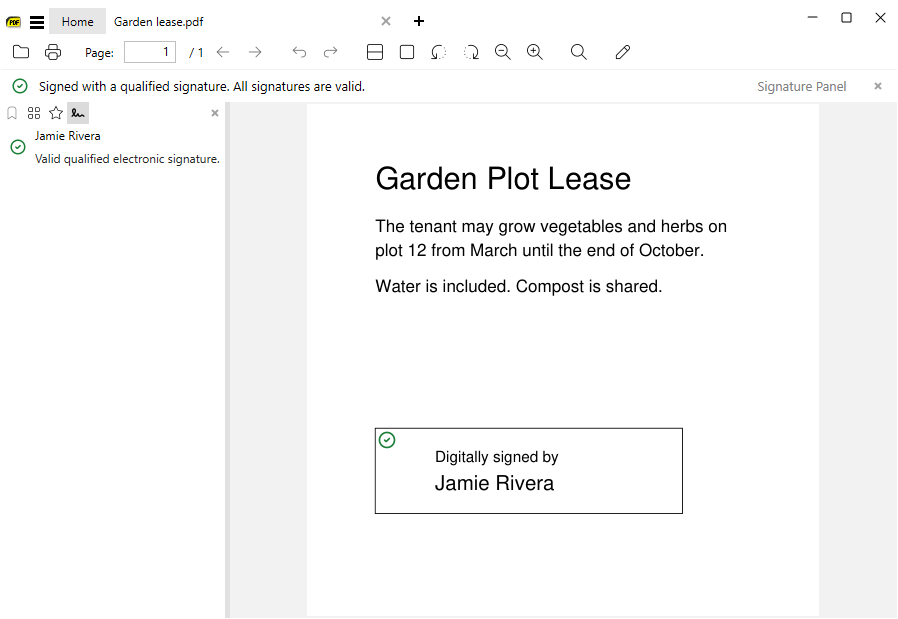
Open the signed PDF and read the bar above the document. At a glance:
- Bar: says whether all the document’s signatures are valid.
- Signatures view: the sidebar’s list of signatures, with a row per signature (
CmdShowSignatures). - Status icon: on each signature visible on the page.
- Signature Properties: the dialog with one signature’s status, why it has that status, and who signed.
- Properties (
Ctrl + D): every signature’s details, with revocation checked online.
Check whether a document’s signatures are valid #
Open the PDF. The bar says one of:
- Signed with a qualified signature, and all signatures are valid.
- Signed, and all signatures are valid.
- At least one signature has problems.
- At least one signature is invalid.
A problem or an invalid signature changes the bar’s color:


Each signature has its own status:
- Valid qualified electronic signature or seal: a qualified certificate on a qualified device, from a provider the EU Trusted List says was granted that service at the time. This is what a qualified signature means under EU Regulation 910⁄2014.
- Valid signature: the signed part is intact and the signer’s certificate is trusted, by Windows or through the EU Trusted List.
- Validity unknown: the signer’s identity couldn’t be verified, or the document changed after signing.
- Invalid: the signed part doesn’t match the signature, or the certificate was revoked.
See the signatures in a document #
Show the Signatures view of the sidebar:
- click Signature Panel in the bar
- click its icon at the top of the sidebar
- press
Ctrl + K, thenShow Signatures(CmdShowSignatures)
Each row shows the signer and the status. Click a row to go to the signature’s page.
See a signature’s details #
Open Signature Properties:
- double-click a row in the Signatures view
- click the signature on the page
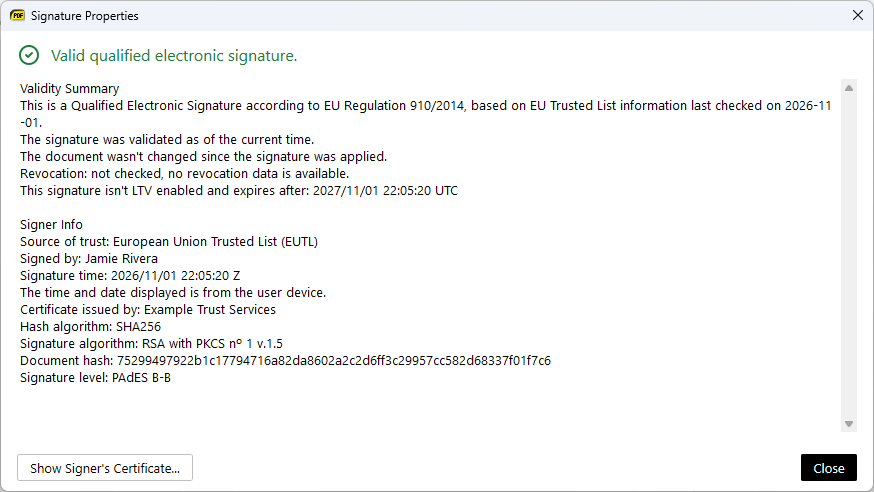
It shows the status, a Validity Summary and Signer Info. Show Signer’s Certificate… opens the certificate.
Properties (
Ctrl + D) lists the same details for every signature. It also shows the signer and whether the document changed since signing:- A certifying signature shows what it allows (Certified: no changes allowed).
- A last-signer lock shows Locks the document: no changes allowed after this signature.
- In a chain of signatures the earlier ones say N later signature(s) were added; the bytes this signature covers are intact rather than that the document was changed, because a signature added on top is not an edit of what came before.
How signatures are checked #
A signature is checked as of the time a trusted timestamp proves it was made, so it stays valid after its certificate expires. Without one it’s checked as of now, because the signer’s clock proves nothing.
Revocation is checked from the CRLs and OCSP responses in the document, then from Windows’ cache. Opening Properties also asks the certificate authorities online. A signature with no revocation data still counts as valid, and Properties says it wasn’t checked.
Update the EU Trusted List #
The EU Trusted List downloads by itself when a signed PDF needs it, and again after a week. Update EU Trusted List in Properties does it right away.
Turn off the bar #
The bar closes with its ✕, for that tab. To turn it off, set
ShowSignatureStatus = false in advanced settings.Verify from the command line #
sumatrapdf-tool sign -v signed.pdf
See Tool sign. It prints the signer and whether the document changed, not the statuses above.
See also #
- Sign a PDF: add your own signature
- Show PDF info: what Properties shows
- Tool sign: list, sign and verify from the command line